
Introduction: Why the Leopard Dock Should Be Customized Carefully
Older Leopard Dock customization guides often start in the wrong place: inside system folders, with downloaded resource files, administrator prompts, and a casual instruction to replace whatever is already there.
That may have felt normal in 2008. On an aging Mac OS X installation, it is a poor bargain. A working Leopard or Snow Leopard machine may be running from a vintage hard drive, a carefully preserved software stack, or an archival build that is harder to replace than it looks.
Field experience revealed a familiar pattern in old forum threads: users pasted replacement resources into Mac OS X v10.5, fixed one cosmetic annoyance, and then created a Dock that would not relaunch cleanly. The worst cases were not dramatic hardware failures. They were small permission mistakes, mismatched files, and uncertain rollback steps.
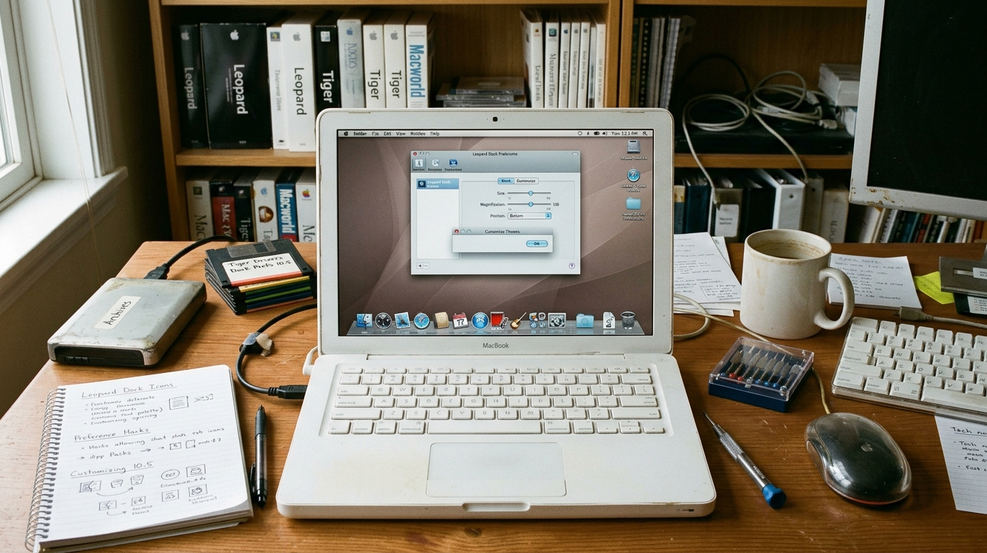
The safer goal is simple: change the Dock’s look and behavior without manually swapping system files or damaging a stable Leopard or Snow Leopard environment.
This guide is for Mac OS X v10.5 Leopard and Mac OS X v10.6 Snow Leopard users, vintage Mac collectors, customization hobbyists, and software archivists who want the old glass shelf to feel personal without turning a functional machine into a repair project.
What's Inside
- What changes when the Dock is customized
- How to prepare a Leopard-era Mac before using a visual utility
- Where DockDR fits into 2D, 3D, and skin-based Dock changes
- How to verify the result and preserve a clean rollback path
What Actually Changes When You Customize the Leopard Dock
The common question is whether every Dock tweak carries the same risk. It does not.
Dock appearance, Dock behavior, application icons, and system resources sit in different layers. A skin changes the visible treatment: shelf texture, edge impression, highlight behavior, and the overall fit against Leopard’s translucent interface. Dock behavior covers things such as magnification, position, minimize animation, stacks, and whether the Dock presents itself in a 2D or 3D style.
Application icons are separate again. Replacing or changing an app icon affects how that app appears in the Dock, Finder, and sometimes the application bundle. That is not the same as changing the Dock’s own rendering style.
The architecture underneath should be left alone unless there is a specific repair reason to touch it. Altering the 3D glass shelf does not require modifying the Darwin foundation or treating CoreServices like a scrapbook.
Critical Insight: Skinning changes the Dock’s presentation. Replacing operating system resources changes the installation. Those two actions should never be treated as equal.
Leopard’s 3D Dock and the optional 2D-style presentation are the main visual switch DockDR targets. That distinction matters because it keeps the customization task narrow. You are not rebuilding the Dock. You are choosing how an existing Dock should render.
Prepare the Mac Before You Touch the Dock
I still begin with the dull checks because they save the interesting machines.
Open About This Mac and confirm the exact version first. This article covers Mac OS X v10.5 Leopard and Mac OS X v10.6 Snow Leopard. If the machine is running Snow Leopard and you need hardware context, Apple’s Snow Leopard technical specifications remain a useful reference point.
Then make the system restorable. A full bootable clone is better than a folder copy, especially on vintage drives where one bad assumption can cost an afternoon. Allow roughly 15 to 25 minutes for a FireWire 800 external drive to fully clone a standard 120GB Leopard installation before proceeding.
Pre-Customization Baseline Checklist
Post-Change Verification Routine
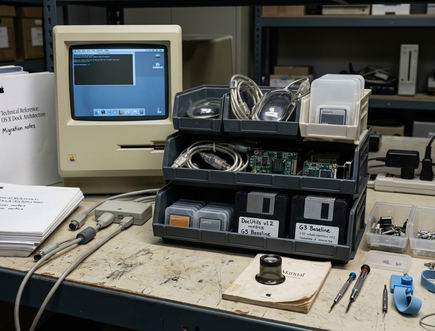
- Verify the OS version is exactly v10.5.x or v10.6.x via About This Mac.
- Confirm administrator account access is active.
- Complete a full bootable clone to an external FireWire or USB drive.
- Capture a screenshot with Cmd+Shift+3.
- Write down the current Dock position, magnification setting, stacks behavior, and minimize animation.
That last item may sound fussy until a skin looks slightly wrong and nobody remembers whether the Dock was already magnified. Establishing a strict baseline lets you isolate visual anomalies instead of guessing which change caused them.
Recommendation: Keep the screenshot and notes outside the system volume you are changing. If the boot volume misbehaves, the rollback evidence should not be trapped on it.
Use DockDR for 2D, 3D, and Skin-Based Dock Changes
DockDR is an Innermindmedia utility for toggling 2D and 3D Dock modes and applying skins on Mac OS X Leopard-era systems.
The beginner path is straightforward: inspect, change one setting, verify. A more confident user may apply a skin in the same session, but the principle stays the same. Let the utility manage the Dock change rather than manually replacing Dock.app resources or files in system folders.
Safe DockDR Workflow
- Open DockDR from a known local copy.
- Inspect the current Dock state before selecting a new option.
- Choose the intended 2D or 3D behavior.
- Apply one skin, if skinning is part of the session.
- Restart or refresh the Dock only when necessary.
- Verify the result before making another visual change.
The older manual approach often focused on replacing files such as scurve-l.png and scurve-xl.png inside CoreServices. That method leaves too much room for a single typographical error during a terminal session, a bad permission change, or a resource mismatch that triggers a Dock relaunch loop.
Risk Factor: Unrecoverable Dock crash loops can follow incorrect chmod permissions on manually swapped scurve-xl.png files. If the utility can handle the change, do not perform the replacement by hand.
Advanced users should still resist the urge to combine DockDR with unrelated system modifications in the same maintenance window. If the Dock fails after three simultaneous changes, the error trail becomes needlessly muddy.
Choose Skins and Icons Without Breaking Visual Consistency
A good Leopard Dock skin does not have to shout. It has to remain readable against the wallpaper, preserve icon contrast, and sit comfortably with translucent menus, rounded window chrome, and the blue-gray rhythm of the era.
Novelty skins are tempting because they make the machine feel new for a few minutes. The better test is whether the Dock still works at a glance after an hour of actual use.
Change one variable, then look at the Dock. Toggle 2D or 3D first. Check it. Apply one skin. Check it again. Only then think about icons.
Application icons deserve their own decision. Icons from apps such as Angry Birds by Rovio Mobile Ltd or Pixelmator by the Pixelmator Team may visually clash with retro Dock skins, especially when newer artwork sits beside Leopard-era gloss. That clash is a design issue, not a DockDR issue.
Icon Format Edge Cases
Icon rendering artifacts can depend on whether the application uses 128x128 Leopard-era .icns formats or higher-resolution assets. A modern-looking icon can appear too sharp, too large, or simply out of period on a carefully styled classic Dock.
Recommendation: Judge skins with your real working Dock, not an empty test Dock. Mixed application icons reveal contrast and spacing problems faster than a tidy screenshot.
Verify the Dock, Then Keep a Clean Rollback Path
Verification should feel mechanical. That is the point.
Start with the actions most likely to stress the Dock and the graphics window server. Launch several applications from the Dock. Minimize a window. Switch between applications. Turn magnification on and off if you use it. Open stacks. Check whether the Dock remains responsive after each step.
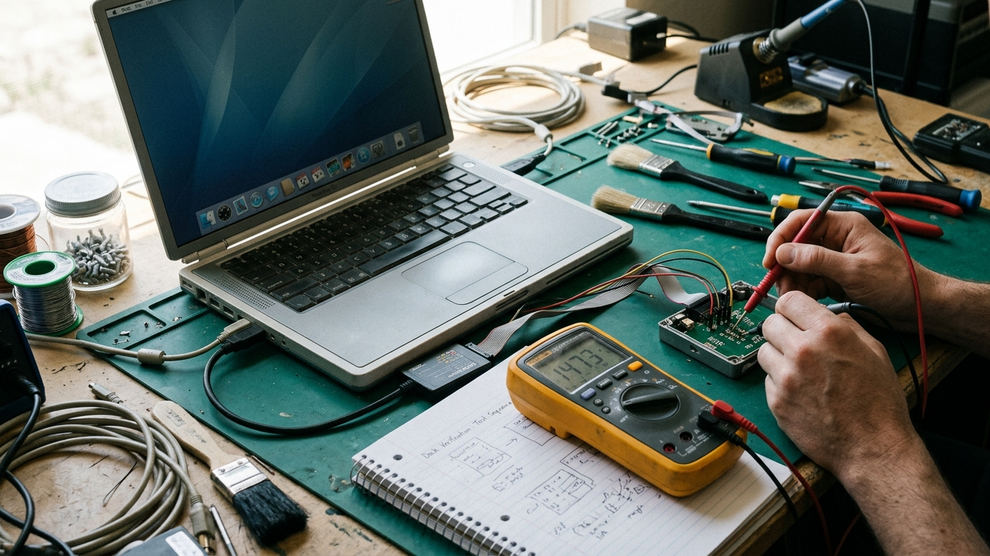
- Check Dock launch behavior from several pinned applications.
- Test minimize animation with at least one Finder window and one application window.
- Switch between active apps using the Dock and keyboard shortcuts.
- Open stacks and confirm they render in the expected view.
- Restart the Mac and wait before judging persistence.
- Compare the final Dock against the baseline screenshot.
After a restart, wait roughly a minute once the desktop loads. That pause gives the com.apple.dock.plist file time to initialize the new parameters before you decide whether the setting survived the session.
If the result is stable, record the final state. ScreenRecorderPro or another capture method can preserve evidence of the working setup, which helps later if the machine is being archived, sold, loaned, or rebuilt.
Critical Insight: A Dock skin is not finished when it looks right. It is finished when it survives launch, animation, stacks, restart, and comparison against the original state.
Scope, Limitations, and Legacy Software Risk
This guidance is intentionally narrow. It covers Mac OS X v10.5 Leopard and Mac OS X v10.6 Snow Leopard, not modern macOS.
DockDR and related utilities belong to a legacy software context. Availability, signing status, and download integrity may vary today, so the safest copy is one you can trace, checksum, and store with the rest of the machine’s software archive.
The boundary matters because modern macOS uses security architecture that was not designed around these old Dock customization habits. Vintage techniques that worked on Leopard can fail silently, refuse to run, or be blocked outright on later systems.
There is also a hard rendering limit: the 2D Dock toggle relies on a specific CoreGraphics rendering path that was permanently removed in OS X Mountain Lion. If a machine is later upgraded past Snow Leopard v10.6.8, these exact visual overrides will not behave the same way.
Innermindmedia, ScreenRecorderPro, Rovio Mobile Ltd, and the Pixelmator Team are referenced here only within their relevant historical or developer contexts. For these two OS releases, not the whole Mac lineage, the practical concern is preserving a working environment while making reversible interface changes.
Risk Factor: Do not apply Leopard-era Dock utilities to a modern macOS volume to see what happens. The file system, security model, and Dock implementation are different enough that curiosity can create cleanup work.
Summary: The Safe Way to Personalize a Classic Dock
The safe path is not complicated. Use reversible DockDR-style controls instead of manual system-file replacement.
Verify the OS. Back up the machine. Capture the original Dock. Change one Dock setting or skin. Test behavior under normal use. Restart, wait for preferences to settle, then document the final state.
That workflow may feel slower than dropping a downloaded resource into a system directory, but it respects the machine. A Leopard or Snow Leopard installation is often more than an old operating system; it is a preserved working environment with software, habits, and visual details that belong together.
The Leopard Dock is worth customizing because its visual identity is part of the classic Mac OS X experience. Keep the glass shelf personal, but keep the system recoverable.

Discussion
Share your thoughts.
Write a Comment