
Classic Mac OS X utilities age in a strange way. The applications may still launch, the icons may still look sharp, and the preference pane may still slide into System Preferences, but the trail behind them can disappear overnight.
This guide focuses on practical preservation for the 2001-2011 OS X era, from 10.0 Cheetah through 10.6 Snow Leopard. That window covers the freeware Dock hacks, Konfabulator-era widgets, screensavers, icon sets, system preference panes, and visual-personalization tools that made a Mac feel like your Mac.
What's Inside
- Why classic OS X utilities are disappearing
- How to define preservation scope before downloading
- What provenance details to record
- How to use checksums, folders, and redundant storage
- Why testing must match the target Mac
- Where licenses and sharing limits matter
- How to build a usable catalog
- How to package the archive safely
- A preservation workflow checklist
Why Classic OS X Utilities Are Disappearing
The first classic OS X utility I lost was not rare. It was a small visual tweak for the Dock, the sort of tool that lived on a developer's personal page next to a changelog and a PayPal donation link. The download mirror broke, the registration note was gone, and the only remaining copy had been renamed so many times that the version number was guesswork.
That is the normal failure pattern now. Developer sites expire. University-hosted mirrors vanish. PowerPC-only binaries get separated from their readme files. Old certificates expire. Shareware serial policies get lost in abandoned mailboxes.
For Mac collectors, vintage OS X hobbyists, software archivists, and anyone maintaining Tiger, Leopard, Snow Leopard, or early Intel systems, preservation starts before the last download link dies. Nostalgia is part of it, but utility matters more. A screensaver package, a menu-bar tool, or a preference pane can explain how people actually used the system.
What tends to disappear first
Redundant storage without silent damage
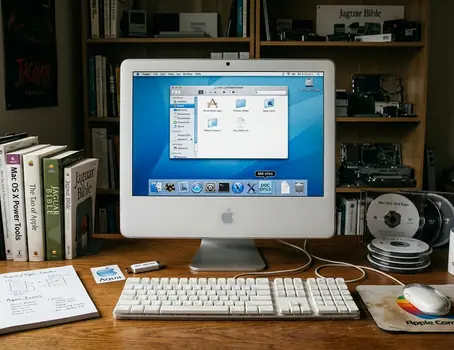
- Original download pages with version notes and compatibility warnings
- StuffIt archives and disk images hosted on personal web space
- Registration instructions for shareware and donationware
- Dashboard widget dependencies and bundled web assets
- Installer notes for kernel extensions or appearance managers
Critical Insight: The file is only one part of the artifact. The surrounding context often decides whether a future user can install it safely.
Define What You Are Preserving Before You Download
A beginner usually asks, “Should I just save the.dmg?” That is a fair instinct, especially when old drives are small and an archive folder grows quickly.
We initially considered archiving only the raw disk images or compressed archives to save storage space, but rejected that approach after seeing how much meaning lived outside the file. A web page might say “Tiger only.” A screenshot might show the intended Dock appearance. A readme might explain that the installer touches a system folder and needs a logout before changes appear.
Start with scope
Decide what counts before you start grabbing files. A preservation set can include application installers, disk images, StuffIt archives, preference panes, widget bundles, screensaver packages, icon themes, readme files, serial-number policy notes, screenshots, and saved web-page context.
Then separate the material by use, not just by file type. Dock customization belongs in one category. Dashboard widgets, screensavers, icon replacements, Finder tweaks, menu-bar tools, and appearance managers each deserve their own shelf.
Record the intended OS range
Write down the target Mac OS X range while it is still visible. Panther, Tiger, Leopard, Snow Leopard, Rosetta-dependent Intel Macs, and PowerPC-only machines are not interchangeable labels. Dashboard widget behavior, for example, can vary drastically depending on whether the host system runs OS X 10.4 with its original rendering engine or OS X 10.6.
Recommendation: Treat compatibility as a required field, not a note you might add later. If the source page says 10.4.11 PowerPC, write exactly that.
Record Provenance While the Source Still Exists
The common question is simple: “What should I write down at download time?” The answer is more detailed than most people expect, but it becomes routine after a few folders.
Capture the original URL, developer name, version number, exact file size, release date if available, license language, included documentation, and date accessed. Use ISO 8601 dates, such as 2026-06-14, so the order stays clear across regions and tools. Record file sizes down to the exact byte count rather than rounded megabytes.
Plain-text notes beside each download beat memory every time. Folder names help, but they get shortened, copied, and reorganized. A small provenance note survives those changes.
Keep the original name
Do not rename original downloads casually. Old archive names often encode version numbers, CPU architecture, or OS compatibility. A file called DockGlass_1.2_PPC_Tiger.sit tells you more than dock-tool-final.sit.
If you need a cleaner display name, put it in the catalog. Leave the original file untouched.
Use Checksums, Folder Discipline, and Redundant Storage
A checksum is not a museum term. It is a practical way to prove that a file has not changed after copying, moving, or backing it up.
For these archives, a SHA-256 hash gives each original download a cryptographic fingerprint. On classic-friendly modern storage workflows, generate it from Terminal with shasum -a 256, then save the result in a manifest file inside the same collection folder.
A folder structure that still makes sense later
Use a structure you can read without special software:
- /Classic OS X Utilities/Category/App Name/Version/Original Download
- /Classic OS X Utilities/Category/App Name/Version/Documentation
- /Classic OS X Utilities/Category/App Name/Version/Test Notes
The manifest should include filename, SHA-256 checksum, exact file size, source URL, and short notes. Keep it boring. Boring is searchable.
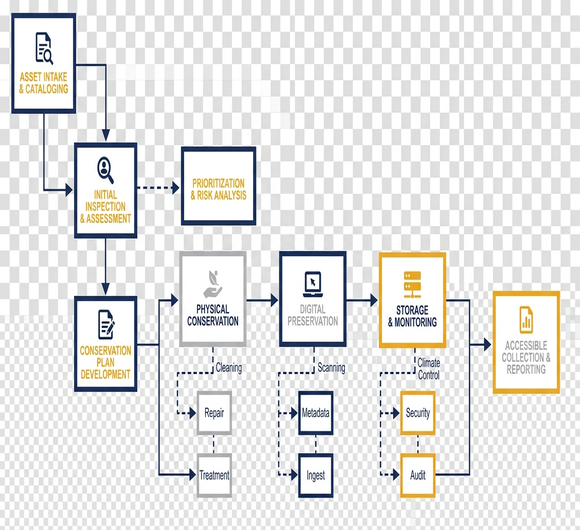
Use redundant storage, but do not treat every disk format as harmless. Resource forks can be silently stripped when transferring a classic compressed archive across an exFAT-formatted USB drive, leaving the extracted application unlaunchable.
For local archive drives, use HFS+ or APFS. Avoid FAT32 and exFAT for the working preservation copy, especially when handling older Mac materials that may depend on metadata.
Risk Factor: A file that copies successfully is not automatically intact. Verify the checksum after transfer, then test extraction on a Mac that understands the format.
Test on the Right Mac, Not Just Any Mac
Classic OS X utilities are environment-sensitive. PowerPC code, Rosetta behavior, kernel extensions, preference panes, old Installer packages, and Dashboard widget dependencies can behave differently across releases.
A utility that opens on Snow Leopard may not behave like it did on Tiger. A preference pane may load but fail to apply changes. A kernel extension may appear to install and then never load.
Build test notes like a technician
For each utility, record the tested OS version, CPU type, Mac model or virtual environment, install method, whether it launches, visual changes observed, and cleanup steps. Do not reduce the result to “works” unless you define what worked.
Useful annotations are short: “works on 10.4.11 PowerPC,” “installer fails on 10.6,” “requires Rosetta,” or “changes Dock appearance only after logout.” These notes help the next person avoid repeating your whole afternoon.
Use reversible test setups
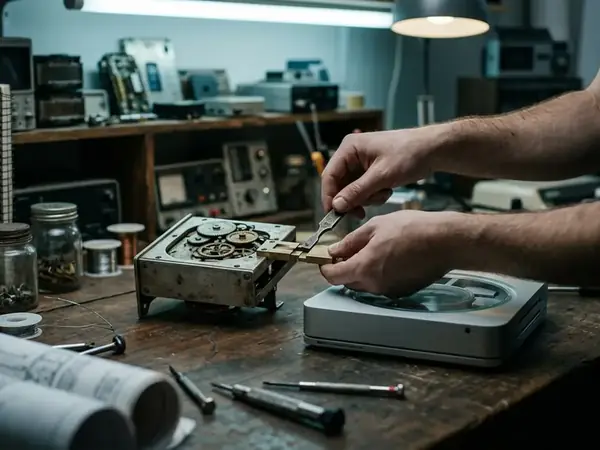
Test system modifiers on a non-primary Mac, a fresh user account, a disk image clone, or a reversible test volume. That matters for appearance managers, kernel extensions, login items, and anything that writes into Library folders.
Testing legacy kernel extensions natively requires actual G4 or G5 hardware running OS X 10.4 or 10.5; emulation layers on early x86 systems can silently fail to load these low-level system modifiers. That limitation is narrow, but it changes the value of the test result.
Respect Licenses, Abandonware Myths, and Sharing Limits
Preservation and redistribution are not the same action. Keeping a private copy for research or personal archival use does not automatically mean you can repost it publicly.
Freeware usually allowed no-cost use, but it may still restrict redistribution. Shareware often allowed trial use while requiring payment or registration. Demo software was intentionally limited. Donationware asked for support without always changing the license. Commercial abandonware is still commercial software unless rights changed.
Determining the boundary between preservation and piracy required consulting digital archivists, which led to a practical operating rule: keep private cold-storage complete, but publish only metadata, source references, compatibility notes, and rights-safe descriptions unless redistribution permission is clear.
Save the terms with the file
Preserve license files, readme notes, purchase receipts, registration emails, and original distribution terms where available. If you are building a public index, link to lawful sources when they still exist and describe the artifact without uploading the binary.
The Library of Congress digital preservation resources are useful for thinking about long-term stewardship, though classic OS X utilities bring their own software-specific constraints.
Recommendation: Separate the private archive from any public catalog. The catalog can be helpful without becoming an unauthorized download mirror.
Build a Catalog That Future Users Can Understand
A good catalog does not need to be fancy. A spreadsheet, Markdown table, plain-text index, or lightweight database can work if the fields stay consistent.
Use strict metadata columns: title, version, category, developer, original URL, license status, OS compatibility, Architecture (PPC/x86/Universal), OS_Min, OS_Max, file format, SHA-256, test result, notes, and known issues.
Write annotations for use, not display
Short notes carry more value than polished summaries. “Requires Rosetta” is better than a paragraph about early Intel transition history. “Installer fails on 10.6” is better than “compatibility may vary.”
Group feedback indicates that future users trust catalogs more when the result language is specific. They want to know whether the widget opens, whether the Dock changes after logout, and whether the uninstaller restores the system cleanly.
Critical Insight: A catalog is not just an inventory. It is the bridge between a saved file and a repeatable installation.
Package the Archive Without Damaging the Originals
Once the download, notes, and tests are complete, package the set without rewriting history. The original download should remain untouched, even if you also keep an extracted copy for convenience.
A preservation-ready bundle includes the original download, extracted copy if needed, readme and license files, checksum manifest, provenance note, and test note. If you create your own container for storage, use common, well-supported formats, but retain the original .dmg, .sit, .zip, .pkg, or .tar.gz file.
Do not clean away the evidence
Recompressing old packages, stripping resource forks, or moving files through incompatible filesystems can damage classic Mac materials. The archive may look tidier afterward, but it may no longer represent the artifact you meant to preserve.
Within the limits of surviving documentation, the safest habit is simple: preserve first, normalize second, and label every change you make.
Classic OS X Utility Preservation Workflow
Use this checklist when a download link still works and you do not want to revisit the same page under pressure later.
- Define scope: Identify the target OS range, such as 10.4 to 10.6, and assign the utility category.
- Download completely: Capture the installer, readme, license, screenshots when useful, and original webpage context.
- Record provenance: Log the source URL, developer, version, exact byte count, access date, and license language.
- Verify the file: Generate a SHA-256 hash with shasum -a 256 and save it in a manifest.
- Store safely: Keep working archive drives on HFS+ or APFS, with redundant copies checked after transfer.
- Test carefully: Use the right OS version, CPU architecture, and a reversible test setup.
- Catalog clearly: Record architecture, OS minimum, OS maximum, checksum, test result, and known issues.
- Share cautiously: Publish metadata and notes when rights are unclear; redistribute files only when permission allows it.
Classic OS X customization was personal because the tools were small, specific, and often built by one developer solving one irritation. Preserving them well means keeping that specificity intact: the file, the context, the license, the test result, and the little note that says which Mac finally made it behave.






Discussion
Share your thoughts.
Write a Comment