
What's Inside
- How Leopard changed the Dock from a flatter strip into a reflective shelf
- What users actually saw when comparing 2D and 3D Dock behavior
- Why the 2D tweak became common in Leopard customization circles
- Where the Terminal command helped, and where it did not
- Which Dock style still makes sense for preserving a Leopard-era desktop
Leopard Turned the Dock Into a Design Statement
The first time I sat down in front of a fresh Mac OS X Leopard install, the Dock took over the room before any application did.
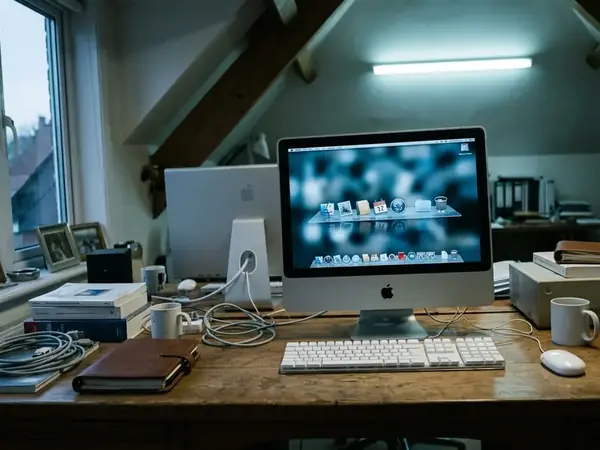
Tiger’s Dock had presence, but it still behaved like a tool. Leopard’s bottom Dock behaved like furniture: angled, glossy, reflective, and hard to ignore. During the October 2007 release window, reviewers and early adopters focused on that change almost immediately. The shift from a flatter strip to a glass shelf became one of the most argued interface decisions across the Mac OS X 10.5.0 to 10.5.8 lifecycle.
This article stays inside that Leopard 10.5 context. Snow Leopard, Yosemite, and modern macOS each changed the Dock in their own way, but the 2D versus 3D argument belongs most cleanly to Leopard.
The issue was never only taste. It touched usability, screen size, hardware fashion, and the older Aqua habit of treating the desktop as a clean work surface.
What Actually Changed Between the 2D and 3D Dock
The 2D Dock was a strip. The 3D Dock was a shelf.
That sounds like a small difference until you work on a 13-inch notebook all day. Leopard’s default bottom Dock used a roughly 15-degree perspective tilt, dynamic icon reflections at around 30% opacity, stronger highlights, and a heavier shadow profile. Icons no longer simply sat in a row; they appeared to stand on a piece of glass.
The active application indicator changed the scan pattern too. Earlier OS X users were used to a distinct black triangle under an active application. Leopard moved that cue into a glowing blue orb, which looked more atmospheric but could be less direct at a glance.
Bottom Dock versus side Dock behavior
Leopard did not use the same rendering everywhere. The bottom-positioned Dock received the 3D glass shelf. When users pinned the Dock to the left or right edge of the screen, OS X Leopard forced a flatter 2D treatment regardless of the hidden no-glass preference.

Visual and Functional Differences: Leopard 3D vs. 2D Dock
| Interface Element | 3D Dock (Default) | 2D Dock (Tweaked/Side) |
|---|---|---|
| Base Appearance | Angled, translucent glass shelf with depth | Flat, semi-transparent dark rectangular strip |
| Active App Indicator | Glowing blue orb integrated into the lower Dock area | Leopard indicators remain, but sit against a flatter surface |
| Icon Treatment | Mirrored icons with dynamic reflections at around 30% opacity | Less emphasis on reflection and perspective |
| Perspective | Approximately 15-degree shelf tilt | No angled glass shelf |
| Screen Position | Used for the bottom-positioned Dock | Forced on left or right Dock placement |
| Visual Weight | Stronger highlights, shadows, and reflection padding | Cleaner edge with less visual pull |
Why Apple Pushed the Glass Shelf Look
Leopard arrived when Apple hardware was becoming glossier and more theatrical. Aluminum iMacs, glossy displays, and polished product photography all leaned toward reflection and depth. The 3D Dock fit that world.
Apple presented Leopard as a major visual and functional step in its public release material, including Apple’s 2007 Leopard release announcement. That context matters, but it should not be stretched into proof that the glass shelf helped every user. It mainly shows the direction Apple wanted the desktop to take.
The 3D Dock made Leopard feel newer before a single feature was opened. It gave the system a cinematic desktop, where icons seemed staged rather than merely placed. On a large display, that could feel elegant.
Critical Insight: The 3D Dock worked best as identity. It made Leopard look like Leopard, even when it did not make application launching faster or clearer.
Why Many Mac Users Wanted the 2D Dock Back
The common question was simple: why did a visual upgrade make some users reach for Terminal?
The answer usually came down to four complaints: readability, distraction, consistency, and screen space. The reflective shelf competed with icon shapes. The glow under running apps looked softer than the old triangle cue. The shelf also made the Dock feel visually separate from the flatter menu bar, Finder windows, and many utility palettes.

Screen size mattered more than nostalgia alone. A 13-inch MacBook at 1280x800 did not have much vertical room to waste. The 3D shelf’s shadow and reflection padding could consume roughly 20 to 30 pixels of vertical screen real estate, which was noticeable when working in Xcode, Safari, Mail, or a tall Finder list.
Older iBooks and PowerBooks made the same point in a rougher way. A Dock that looked beautiful in a screenshot could feel oversized when the display already felt cramped.
The nostalgia was practical
Many vintage OS X users preferred the 2D Dock because it felt closer to Tiger and early Aqua. That was not just sentiment. The flatter Dock placed less emphasis on itself, which helped the desktop return to being a workspace rather than a presentation layer.
Recommendation: If the goal is a utility-first Leopard setup, start with Dock position and visual weight before changing icons. Those two choices affect every minute of use.
How the Hidden 2D Dock Tweak Worked
Most users did not need a full theme to flatten Leopard’s bottom Dock. The cleaner approach used a hidden Dock preference.
Early modders sometimes tried replacing contents inside the Dock.app package. That route was fragile because system updates could overwrite or break the modified resources. The community standardized on toggling the no-glass preference instead, then restarting the Dock process.
The common Terminal approach
- Open Terminal from Applications or Utilities.
- Write the hidden Dock preference.
- Restart the Dock immediately so Leopard reloads the setting.
The second command is not cosmetic. Terminal commands can appear to do nothing if the Dock process is not restarted after the defaults write. Running killall Dock closes the current Dock process and lets OS X relaunch it with the updated preference.
What beginners missed
Newer tinkerers often expected the setting to affect every Dock placement. It did not. One catch: the no-glass boolean command only alters the visual rendering of the bottom-positioned Dock. If the Dock is pinned left or right, Leopard already uses a 2D rendering regardless of that preference.
Exact behavior can vary by Leopard point release, system state, and prior customization. For this narrow Leopard-era Dock behavior, preference edits are safer to discuss than old package replacements, but they are not magic.
Scope, Limitations, and Compatibility Notes
This is legacy customization behavior for Mac OS X Leopard 10.5. It is not guidance for current macOS Dock modification.
Archived forum advice can be inconsistent because many Leopard-era utilities are gone, partially mirrored, or no longer maintained. Third-party GUI wrappers from the 2008-2009 era often did little more than run the same preference command behind a button. Some worked cleanly; others assumed a specific system state.
Risk Factor: Modifying Dock resources, replacing system files, or using old third-party utilities carries more risk than changing a Dock preference. Resource edits can also complicate later system updates.
Custom artwork introduced its own problems. Visual clipping could appear when the 3D reflection engine misinterpreted non-standard transparent PNG boundaries, especially with icon sets that were not prepared for Leopard’s reflection behavior.
The Tweak Became Part of Leopard Customization Culture
The 2D Dock tweak became one piece of a larger Leopard customization habit.
Users mixed flattened Docks with icon sets, Dock separators, stack styling, transparent menu bar experiments, screensavers, and Dashboard widgets. The Dock attracted attention because it was always visible. A wallpaper could hide behind windows. A screensaver appeared only when the machine rested. The Dock sat there, judging the whole desktop.
Separators and visual organization
Enthusiasts paired the flattened Dock with custom transparent PNGs to create invisible spacers. A common separator trick used 1px wide by 64px high transparent files, letting users divide applications into categories instead of keeping one continuous line of icons.
Leopard’s 128x128 pixel maximum icon scaling made icon packs feel substantial, especially on larger displays. Some users combined the 2D Dock with classic icon packs to approximate Tiger-like or early Aqua layouts. The result was not a perfect restoration, but it brought back the restrained rhythm many people missed.
Group feedback suggests that laptop users tended to value this restraint more than users on high-resolution external displays. The hardware shaped the preference.
Which Dock Style Made More Sense?
The 3D Dock better represented Leopard’s visual ambition. The 2D Dock often served usability and nostalgia better.
If you are preserving the default Leopard look, keep the 3D Dock. It captures the glossy late-2000s Apple mood with very little explanation. It belongs beside aluminum hardware, reflective icons, and the broader cinematic polish Apple pushed during that release cycle.
If you are building a cleaner workspace, use the 2D Dock. It reduces visual noise, makes the desktop feel closer to Tiger, and gives small notebook screens a little breathing room.
The practical summary still holds: 3D was branding and atmosphere; 2D was restraint and legibility. Leopard users kept tweaking the Dock because both answers were valid, but they served different machines and different habits.







Discussion
Share your thoughts.
Write a Comment