
Why Icon Replacement on Older OS X Needs a Method
I spent a recent weekend restoring a Power Mac G4. The appeal of classic Mac customization immediately came rushing back. Dock polish, themed folders, application icons, and restored visual consistency on older systems make these machines feel personal again. You want that cohesive look.
But icon replacement on legacy OS X is not only cosmetic. It involves Mac OS X resource forks utilizing the 'icns' resource type. It touches Finder metadata stored in invisible Icon\r files at the directory level. It interacts with bundle contents, caches, and permissions.
Field experience revealed that aggressive system patching often ruins these vintage setups. So this guide focuses entirely on non-destructive preservation. We will use a safe, reversible workflow designed specifically for Mac OS X-era systems rather than a modern macOS theming guide.
Scope: Which Mac OS X Versions and Icon Types This Covers
You must delineate the exact OS X versions covered to prevent applying legacy techniques to modern, cryptographically sealed volumes. The methods detailed here apply strictly to systems running Mac OS X 10.2 (Jaguar) through 10.8 (Mountain Lion). This era, particularly Panther, Tiger, Leopard, and Snow Leopard, represents the peak of visual customization.
Risk Factor: Attempting bundle modifications on 10.11 or later will trigger System Integrity Protection (SIP) blocks and invalidate code signatures. Do not try these steps on Big Sur or newer.
We will address several distinct icon types. This includes Finder custom icons on files and folders, application bundle icons, Dock-displayed icons, disk icons, and system-level icons. For best results, stick to the boundaries of these specific operating systems.
How Older OS X Stores and Displays Icons
Why do some custom icons survive a reboot while others vanish? The answer lies in how the system handles different modification methods.
There is a fundamental difference between a pasted Finder custom icon and an application's embedded.icns resource inside the app bundle. Pasted icons rely on resource forks and hidden directory files. Embedded icons live inside the application package itself. The system reads the CFBundleIconFile string located within an application's Info.plist to know which image to display.
Icon sizes scale from 16x16 up to 512x512 pixels, with the latter introduced in Leopard 10.5. Finder, the Dock, and icon services cache these images aggressively. This caching behavior explains why replacements sometimes appear delayed or inconsistent across the interface.
Prepare the Mac Before You Replace Anything
Never modify system-adjacent files without a safety net. We initially considered recommending full-disk cloning before any icon modification. We rejected this approach as overly burdensome for cosmetic changes, opting instead for localized.zip duplication.
Creating a 1:1 localized.zip copy typically takes a few to roughly fifteen seconds depending on the application size and the era's hard drive speed. This provides a guaranteed fallback if a bundle modification goes wrong.
Pre-Modification Safety Checklist
- Verify admin access for the current user account.
- Duplicate the target.app bundle or folder to a local.zip archive.
- Extract and isolate the original.icns file to a dedicated backup directory.
- Check ownership and permissions before editing app bundles; do not casually apply broad permission changes to system directories.
The Safest Method: Replace Icons Through Finder Get Info
The lowest-risk approach leverages native Finder APIs without requiring terminal commands or third-party haxies. This is the preferred method for files, folders, and disks.
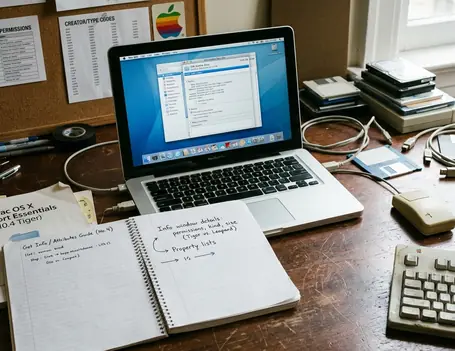
Copy your source icon to the clipboard. Next, use Command-I to open the Get Info panel on your target file or folder. The crucial step involves selecting the 16x16 proxy icon in the top-left corner before pasting. If you select the large preview at the bottom, the paste command will fail.
Critical Insight: This method is preferable for most customization because it is reversible, does not alter application internals, and stays within Finder's expected behavior. To remove a custom icon, simply select that same proxy icon in Get Info and press the Delete key to revert to the default.
For additional context on this native behavior, you can review Apple's guide to changing icons for files or folders on Mac.
Replacing Application Bundle Icons Without Breaking the App
Sometimes the Get Info method falls short. You might need to restore an original icon, theme a legacy app globally, or fix a damaged icon reference. This requires modifying the application bundle directly.
Start by duplicating the app. Control-click the duplicate and select Show Package Contents. Navigate to the Contents/Resources/ directory within the package. Here, you will find the application's visual assets.
Recommendation: Replace the target.icns file while maintaining the exact case-sensitive filename. Do not edit the Info.plist file. Leaving the plist untouched minimizes the risk of breaking application launch routines.
Keep in mind that application updates will overwrite these custom icons. Furthermore, editing bundles may break signatures on later OS X versions as systems approach Gatekeeper-era behavior.
Refresh Finder and Dock Caches Carefully
Stale caches cause immense frustration. You might see the old icon still visible in the Dock, the correct icon in Get Info but not Finder, a generic application icon, or inconsistent sizes.
Prioritize gentle UI-based refreshes over command-line cache clearing to prevent unintended side effects on older, fragile OS X installations. Start by closing and reopening Finder windows. If that fails, try relaunching Finder via the Force Quit menu (Command-Option-Escape).
The Dock requires a different approach. You will often see Dock icons failing to update until the application is manually dragged out of the Dock to trigger the 'poof' animation and re-added from the Finder. Log out and log back in if the visual anomalies persist.
Common Problems: Blurry Icons, Generic Icons, and Lost Metadata
Visual artifacts usually stem from incorrect file preparation or poor transfer methods. Blurry icons happen when you use a single low-resolution bitmap instead of a properly formatted, multi-size.icns file.
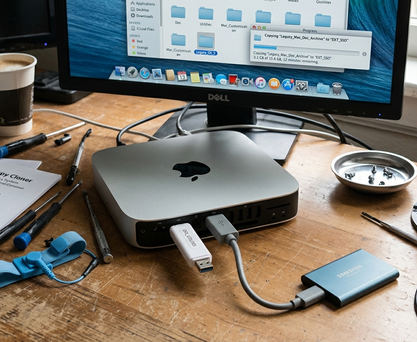
Generic icons indicate missing bundle references, renamed.icns files, damaged app packages, or stale Launch Services data. However, the most frequent cause of generic document icons occurs when transferring files between modern and vintage systems.
Transferring files via FAT32 or ExFAT USB drives strips the resource fork, leaving a 0-byte file or a generic white document icon. You will often notice a generic white document icon appearing after transferring a custom-icon folder via a FAT32 thumb drive due to stripped resource forks. Always use HFS+ formatted drives or package files into certified.dmg archives before moving them across physical media.
Archiving and Reversibility
Customization requires a long-term maintenance plan. You need a standardized naming convention for archived icons to ensure you can reliably identify and restore the original assets years after the initial modification.
I recommend appending _Original and the OS X version number to the archived file. For example, save your backup as Safari_Original_10.4.icns. This removes all ambiguity when you revisit the machine later.
Maintain a dual-backup strategy: keep one copy of the original.icns and one copy of the untouched.app bundle. Non-destructive Finder methods should always precede bundle edits. While these techniques are proven for HFS+ formatted drives running pre-Mavericks architecture, patience and careful file management remain your best tools for preserving the classic Mac experience.







Discussion
Share your thoughts.
Write a Comment