
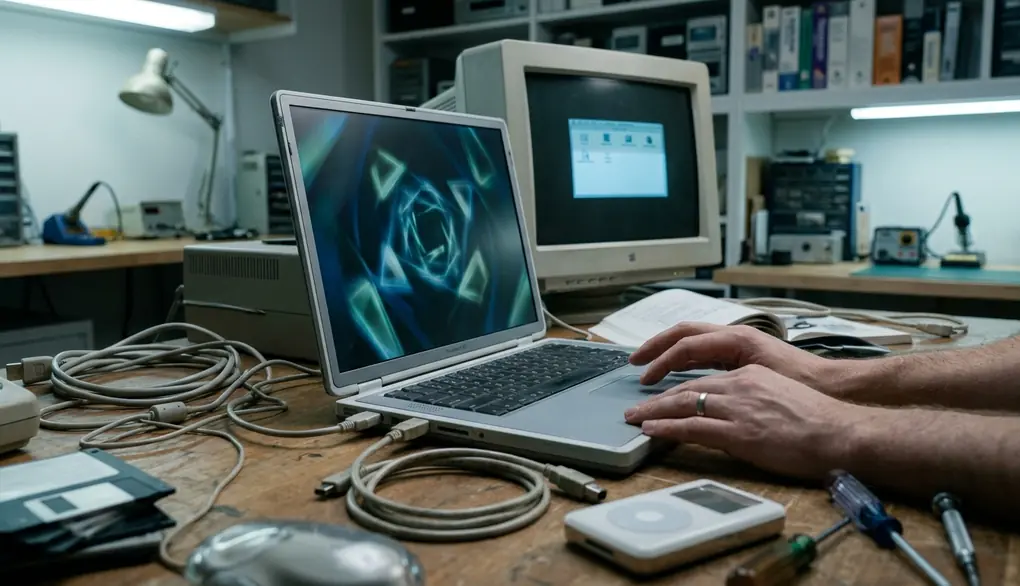
Why Screensaver Choice Still Matters on Classic OS X
Classic Mac OS X screensavers are visual, nostalgic, and sometimes incredibly fragile. They depend heavily on the specific OS version, graphics support, processor type, and old bundle formats. A module that runs flawlessly on a late-era Power Mac G5 might instantly crash an early iMac G3. The editorial decision prioritized a strict selection methodology over a simple visual gallery, focusing on how to evaluate a module's stability and reversibility before considering its aesthetic appeal.
Readers should learn how to choose screensavers that are attractive, stable, and reversible. You need a systematic approach to filtering out incompatible files before they touch your system folder. This guide defines its working scope as OS X versions 10.0 through 10.6. Emphasis falls on Panther, Tiger, Leopard, and Snow Leopard because they remain the most common targets among vintage Apple hobbyists.
Start With the Exact Mac, OS X Version, and Display
Screensaver choice begins with the machine profile. Start by auditing the hardware profile, specifically mapping the GPU generation and display type to determine if the system requires burn-in prevention for a CRT or can handle the scaling demands of an LCD.
Early Aqua-era systems handle graphics differently than Tiger-era Macs equipped with better Quartz Extreme support. Leopard and Snow Leopard systems can process much heavier animated effects. Hardware-accelerated graphics support typically requires crossing the 16MB to 64MB VRAM thresholds. Displays from the early G3 and G4 eras usually feature 4:3 aspect ratios, which dictates how certain visual elements render on screen.
Recommendation: Record the model identifier, processor family, OS version, graphics card, and monitor resolution before downloading anything. Keep this information in a plain text file on your desktop for quick reference.
Use Compatibility Filters Before You Judge the Visual Style
Field experience revealed that prioritizing aesthetics over architecture often leads to downloading later-era Intel builds that fail silently on older machines. You will encounter several formats during your search. The most common are .saver bundles and .qtz composition files, alongside application-based visualizers and archived installers.
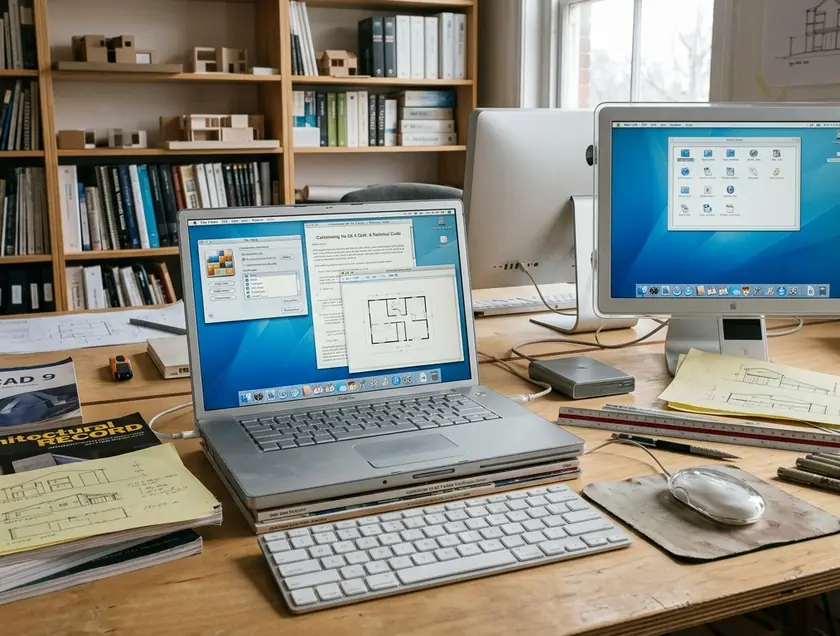
Prioritize OS version claims over visual appeal. A Tiger-compatible saver may fail on Jaguar. A Leopard-era Intel build will not work on PowerPC hardware. Look for downloads that explicitly state supported OS versions, CPU architecture, release date, and whether the file is a Universal Binary versus PowerPC-only or Intel-only. A 10.4-compatible module causing a kernel panic on 10.2 due to deprecated graphics behavior is a proven outcome of ignoring these basic architectural filters.
Match Motion, Effects, and Resolution to the Machine’s Limits
Animated savers can severely stress older GPUs and CPUs. This is especially true on G3 and early G4 machines where thermal management is less efficient than modern standards. The testing process separates low-load static rotations from high-load 3D effects by monitoring the system for fan noise, wake-from-sleep delays, and cursor lag after the module exits.
Low-load choices include static photo rotation, simple clocks, and slow particle effects. High-load choices involve complex 3D rendering, high-resolution video loops, and dense Quartz effects. Native resolutions matter immensely. Older hardware typically runs at 1024x768 native resolutions, while widescreen displays push 1680x1050. Widescreen 10.5-era modules appearing stretched or distorted on 4:3 CRT displays ruin the visual experience and waste system resources.
Run idle testing periods of roughly 15 to 30 minutes to monitor thermal buildup. Test for fan noise, stutter, wake-from-sleep delays, cursor lag after exit, and unusual heat radiating from the chassis.
Treat Old Screensaver Downloads as Executable Software
A screensaver bundle is not just an image—it contains executable code and requires handling like vintage software. Pre-10.7 systems lacking modern file quarantine mechanisms leave your machine vulnerable to poorly written or malicious code. You must act as your own security gatekeeper.
Prefer original developer pages, reputable software archives, preserved readme files, checksums when available, and downloads with visible version history. Avoid anonymous repacks, password-protected archives from unknown uploaders, and installers that request unnecessary administrator access.
Risk Factor: Never grant administrator privileges to a screensaver installer unless you can independently verify the developer's certificate and source archive. A standard module rarely needs root access to display graphics.
Install in a Reversible Way and Test Before Keeping It
The installation workflow isolates new modules by placing them in the user-level directory rather than the system-wide folder, allowing for a rapid rollback if the preference pane crashes or the system hangs. Install user-level screensavers in the ~/Library/Screen Savers directory path when possible. Create the Screen Savers folder manually if it does not exist on a fresh OS installation.
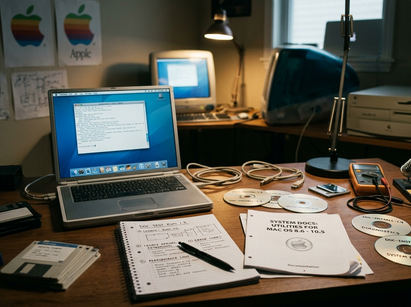
Keep a copy of the original downloaded archive. Avoid unnecessary installer packages that scatter files across your drive. A good test sequence involves copying the saver, opening Desktop & Screen Saver preferences, and previewing briefly. Set a 1 to 2 minute activation timer for initial testing. Allow it to run, wake the Mac, then remove the file immediately if anything behaves oddly.
Choose a Visual Category That Fits the Mac’s Role
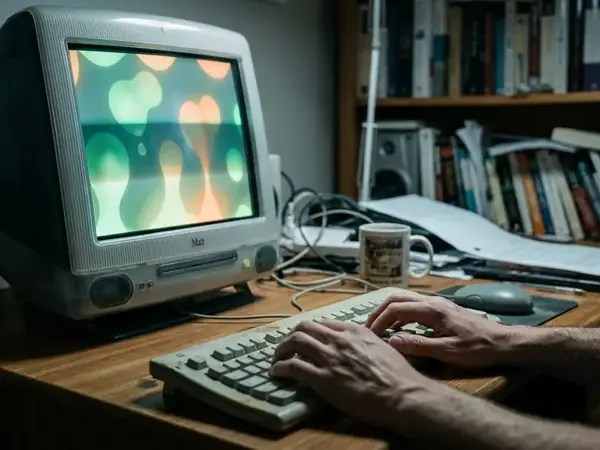
Visual categories are matched to the machine's operational role, pairing subtle ambient motion with daily-use systems while reserving heavy 3D demonstrations for short-term display purposes. Group screensaver choices by use case: period-correct nostalgia, subtle ambient motion, utility clocks, photo slideshows, 3D demonstrations, and museum-style display protection.
Simple ambient effects suit daily-use vintage Macs perfectly. Dramatic 3D savers work best for short demonstrations at vintage computing festivals. Photo rotation fits family or archive displays. Dark minimal savers provide essential CRT preservation. Match the saver to the desktop theme, icon set, Dock style, and OS X era so the system feels coherent rather than randomly customized. A G4 processor running 10.4 requires a fundamentally different visual approach than an Intel processor running 10.6.
Scope, Limitations, and Final Selection Rules
This guide cannot guarantee safety for every archived screensaver, every modified bundle, or every mirror-hosted file. Compatibility claims should be treated as starting points, not absolute proof, especially when the source lacks a release date or CPU architecture note. The final selection rules pull the hardware audit, compatibility filtering, and thermal testing into a repeatable checklist for evaluating any legacy visual utility.
Legacy Screensaver Compatibility & Safety Checklist
- Verify CPU architecture (PowerPC, Intel, or Universal)
- Confirm OS X version compatibility (10.0 through 10.6)
- Check archive for original readme and license documentation
- Install exclusively to ~/Library/Screen Savers
Critical Insight: This testing workflow assumes the target machine has a healthy logic board and GPU; failing VRAM on a vintage system will often cause kernel panics during module activation regardless of the software's stated compatibility. While this methodology covers standard OS X 10.0 through 10.6 setups, heavily modified Hackintosh builds or systems with aftermarket flashed GPUs may exhibit unpredictable rendering behaviors.
Bibliography
For technical details on how these modules interact with the operating system, review Apple’s ScreenSaver framework documentation.



Discussion
Share your thoughts.
Write a Comment