
Introduction: Dashboard as the Mac’s Quick-Access Utility Layer
Dashboard arrived as a lightweight overlay rather than a full desktop replacement. The design kept the main workspace untouched while F12 or F4 summoned quick glances at weather, calculators, clocks, conversions, and package tracking.
Users on Tiger through Mojave-era Macs still encounter this layer today. Later systems where Dashboard lingers can follow the same steps, though the nostalgic pull comes from seeing those small tools handle everyday tasks without launching heavier applications.
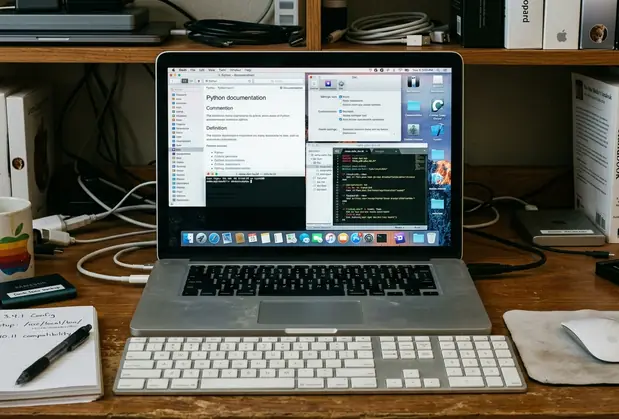
What Dashboard Widgets Are and How They Fit Into OS X
A widget lives inside a.wdgt bundle that holds HTML, CSS, and JavaScript files plus any needed resources. Web developers could therefore build desktop utilities without switching to Objective-C.
Dashboard appears through a key press, Dock click, hot corner, or Mission Control depending on the OS X version in use. Built-in examples include Calculator, Weather, World Clock, Stickies, Dictionary, and Unit Converter.
Scope: Versions, Compatibility, and What This Guide Does Not Cover
The steps target Mac OS X releases that still include Dashboard, especially Tiger through Mojave-era systems. Apple’s Dashboard user guide remains the official reference for those versions.
Dashboard disappeared from later macOS releases, so readers on current systems should not expect these instructions to apply directly. One catch: widgets relying on deprecated 32-bit background binaries or dead APIs will render as blank glass panels even on compatible operating systems.
Finding Dashboard Widgets Without Turning Your Mac Into an Archive Dump
Beginners usually locate widgets in old Apple downloads, developer mirrors, software archives, personal backups, or vintage Mac forums. Plain.wdgt bundles are safer than unfamiliar installer packages.
Keep a dated folder with the downloaded files, source notes, and version details. This habit prevents later cleanup headaches when old JavaScript loops start spiking DashboardClient CPU usage.
Installing and Opening Your First Widget
Download or copy the.wdgt file, double-click it, confirm the prompt, and open Dashboard. OS X copies the bundle into the user’s Widgets folder so the environment can load it.
For archived widgets, place the bundle manually in ~/Library/Widgets. The Widget Installer app in /System/Library/CoreServices/ handles the automated path when available.
Arranging Widgets So Dashboard Stays Useful
Dashboard fills up fast when every novelty stays active. A practical starter layout puts the calendar or clock in one corner, calculator or converter near the center, and weather or system monitor at the edge.
Each widget carries its own controls: a small info button opens preferences for city fields, units, skins, or refresh intervals. Holding the Option key while hovering reveals the close button without opening the full widget bar.
Troubleshooting Broken, Slow, or Annoying Widgets
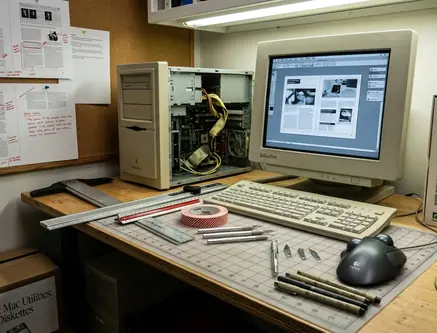
Common early problems include widgets that fail to load, show blank data, request missing services, or slow older hardware. Close the widget from Dashboard first instead of deleting files right away.
Removal follows Dashboard’s manage controls, then deletion of the.wdgt bundle from the user Widgets folder if needed. The troubleshooting sequence favors force-quitting the specific DashboardClient process in Activity Monitor before touching preference files such as ~/Library/Preferences/widget-com.developer.widgetname.plist.
Risk Factor: Widgets that pull from dead APIs stay blank regardless of installation method.
Takeaways for a Clean First Dashboard Setup
The beginner workflow stays simple: understand the widget, install with care, test it, organize the layout, and drop anything unreliable. Notes on widget origins help preserve a vintage installation over time.
Keeping active widgets to around five or six prevents memory paging on systems with limited RAM. The minimalist approach leaves headroom for the rest of the classic Mac experience.
Critical Insight: A dated folder of sources and versions turns random finds into a maintainable collection rather than an archive dump.





Discussion
Share your thoughts.
Write a Comment