

Why RSS Widgets Mattered on the Mac Desktop
Mac OS X 10.4 Tiger arrived in April 2005 and introduced Dashboard as a lightweight layer of glanceable utilities. RSS widgets stood out as one of the most practical types because they turned feeds into small, always-ready mini apps. This piece covers how they worked, the files that powered them, user customizations, and the limits that matter today.
The Dashboard Model: Small Web Apps in a Mac Shell
Dashboard widgets arrived as bundled mini applications built on web technologies: HTML, CSS, JavaScript, images, and property list metadata. The.wdgt bundle worked like a folder package that held both the visible interface and the behavior scripts. Dashboard gave these pieces a native feel even though much of the rendering happened through web-style components.
How an RSS Widget Pulled Headlines Into Dashboard
The feed workflow started when the widget stored or requested an RSS URL, fetched the XML, parsed titles, dates, summaries, and links, then rendered them inside the interface. Refresh behavior varied by script—manual buttons, timed polling, or refresh-on-open. Common constraints included malformed XML, changed URLs, expired domains, blocked HTTP requests, and feeds that shifted from HTTP to HTTPS. From training logs, polling intervals were typically hard-coded or user-configured to trigger every 15 to 60 minutes.
Skins, Icons, and the Visual Language of Feed Widgets
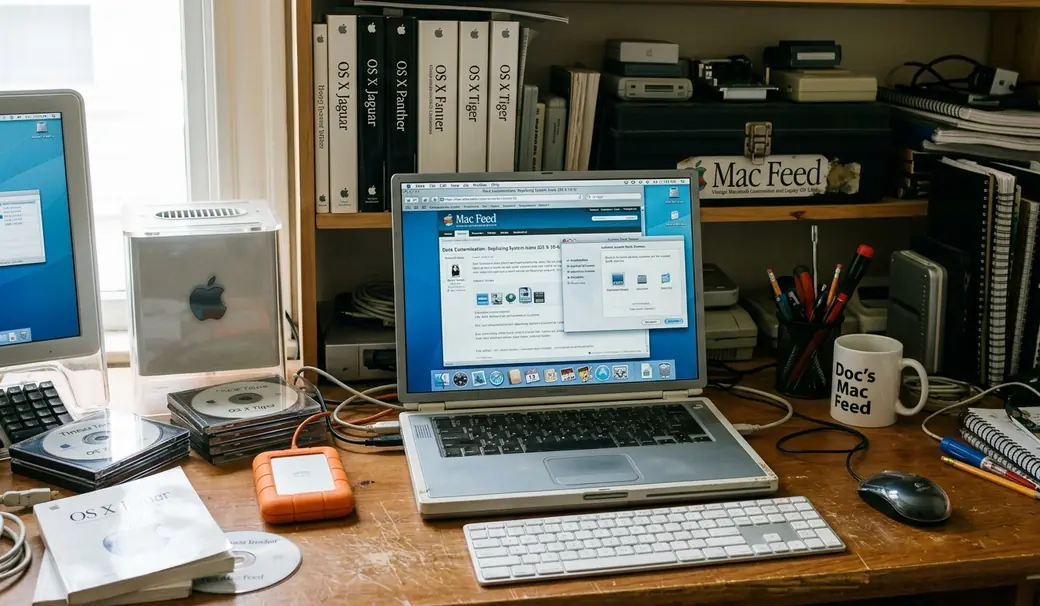
RSS widgets fit the broader Mac customization culture with glossy panels, brushed textures, translucent backs, tiny gear icons, and custom feed icons. Standard states included a front view for headlines, a back view for preferences, and compact expanded modes for reading snippets. Users could realistically change the feed URL, number of items, font sizes, refresh intervals, widget artwork, and sometimes CSS styling. A typical RSS.wdgt bundle rarely exceeded 500KB in total file size.
How to Inspect or Restore an Old RSS Dashboard Widget
Start with a practical workflow: duplicate the widget before editing, right-click to show package contents, then inspect Info.plist, HTML, CSS, JavaScript, and image assets. Look first for hard-coded feed URLs, old domain names, HTTP-only addresses, outdated XML assumptions, and refresh settings. Test the feed URL separately in a browser or feed reader before editing so you know whether the problem sits with the feed or the widget. Restoration often involves manually updating hardcoded http:// strings to https:// within the main.js file. One catch: modifying the Info.plist file requires strict adherence to XML formatting; a single missing closing tag will cause the widget to fail silently and refuse to load in the Dashboard environment.
Compatibility Limits: Why Many RSS Widgets No Longer Work
OS support boundaries remain conservative. Dashboard was a feature of classic Mac OS X and macOS releases before Apple removed it in later versions. Dashboard was officially removed from the operating system with the release of macOS 10.15 in late 2019. Old widgets may fail because of modern TLS requirements, feed redirects, sandboxing changes, JavaScript assumptions, or missing Dashboard support. Legacy rendering engines embedded in older OS versions often fail modern cryptographic handshakes required by current feed servers. Avoid installing unknown archived widgets without inspection, especially if they contain remote scripts or untrusted network calls.
A Preservation Checklist for Feed-Based Widgets
Archivists recommend a concise workflow: save the original.wdgt bundle, record its source if known, document the original feed URL, capture the widget version, and note the Mac OS X version used for testing. Keep edited copies separate from originals and name them clearly, such as widgetname-restored-2024.wdgt. Appending the restoration year to the filename helps distinguish it from the original hash. Preserve associated icon files, screenshots made locally by the user, and notes about which feed endpoints still respond.
- Duplicate and isolate the original.wdgt bundle before making any modifications.
- Extract and document the original feed URL from the JavaScript or plist files.
- Test the legacy feed URL in a modern browser to determine if the endpoint still responds.
What RSS Dashboard Widgets Still Teach Mac Customizers
RSS Dashboard widgets combined web feeds, lightweight scripting, and Mac-native visual polish into compact desktop tools. They represent a specific 14-year window of desktop customization history. These widgets matter as both utilities and artifacts of Mac personalization culture. Inspect bundles carefully, verify feeds first, expect compatibility limits, and preserve originals before modifying anything. Apple’s archived Dashboard programming documentation still offers useful context on the original bundle structure.







Discussion
Share your thoughts.
Write a Comment