
What's Inside
- Why a Custom Mac Icon Theme Needs a System
- Start With an Audit of What Is Already on Your Mac
- Define the Visual Rules Before You Rename Anything
- Build a Folder Structure That Separates Assets
- Use Naming Conventions That Survive Search
- Check Sizes and Formats Before Applying the Theme
- Apply Icons in Batches, Not Random One-Off Changes
- Know the Limits: Caches, App Updates, and Legacy OS X
- Establish a Maintenance Routine
Why a Custom Mac Icon Theme Needs a System
Deciding to treat icons as a design system rather than a loose downloads folder involves shifting from immediate gratification—pasting an icon via Get Info, to long-term library management. Anyone can copy a sleek new folder icon and paste it onto their desktop. It takes five seconds. But doing this repeatedly across an entire machine creates a fragmented, visually exhausting interface.
Modern macOS users and legacy OS X enthusiasts alike juggle Dock icons, folder icons, app replacements, archive packs, and themed desktop layouts. Managing libraries that span from 16x16 pixel classic Mac OS icons to 1024x1024 pixel modern Retina assets requires discipline.
The goal is simple. Build an icon library that is visually consistent, easy to restore, and safe to reuse across machines or OS versions.
Start With an Audit of What Is Already on Your Mac
Before downloading anything new, review your Desktop, Dock, Applications folder, sidebar favorites, and custom drives. You need to know exactly what you are currently running.
Sorting through archives that often contain roughly 50 to 300 individual.icns files per theme pack is tedious but necessary. Sort these existing icons into practical categories: apps, folders, drives, file types, Dock-only icons, seasonal themes, and legacy OS X sets.
Critical Insight: The audit process requires manually inspecting the Get Info panel for existing custom folders to determine if the custom icon is applied at the folder level or inherited from a parent directory.
Look for visual mismatches. You will likely spot mixed lighting angles, different perspective styles, inconsistent corner radius choices, clashing gloss effects, and low-resolution assets hiding in plain sight.
Define the Visual Rules Before You Rename Anything
Use Naming Conventions That Survive Search
Apply Icons in Batches, Not Random One-Off Changes
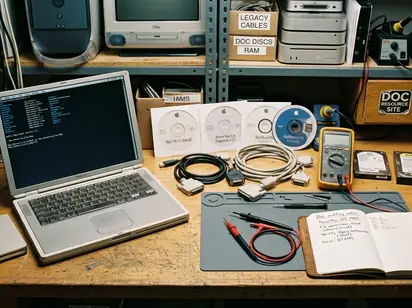
How do you prevent a desktop from looking like a collage of different operating systems? You choose a specific theme direction and stick to it. This could be Aqua-era glossy, Leopard-style reflective, Snow Leopard minimal, skeuomorphic folders, monochrome utility icons, or modern flat replacements.
Establishing visual rules means choosing a specific lighting angle—such as the top-down 90-degree lighting of flat design versus the 45-degree drop shadow of Aqua, and strictly applying it to all custom assets. You must also decide if badges or overlays are allowed.
Create a sample row of 8 to 12 icons on a neutral grey desktop background to test contrast before committing to a full system change. This isolates the icons from distracting wallpapers and reveals subtle inconsistencies in shadow depth or color palette.
For a baseline on legibility and recognizability, consult Apple’s Human Interface Guidelines for icons. Desktop theming can intentionally diverge from app-store design standards, but understanding the rules makes breaking them more effective.
Build a Folder Structure That Separates Assets
A flat folder of downloaded icons is a disaster waiting to happen. You need a concrete hierarchy: Icon Library, Originals, Edited, Installed, Retired, Legacy OS X, App Icons, Folder Icons, Drive Icons, and Theme Exports.
We initially considered organizing the library strictly by OS era, but rejected this approach because many users mix flat app icons with skeuomorphic folder icons; instead, categorizing by asset type proved much more resilient.
Recommendation: Allocate a dedicated 2GB to 5GB partition or external drive folder specifically for the 'Originals' archive to prevent accidental overwrites of rare 2000s-era icon packs.
Keep working files separate from final install-ready versions. Edits, crops, masks, and conversions should never overwrite source material. This is a good way to preserve your digital history.
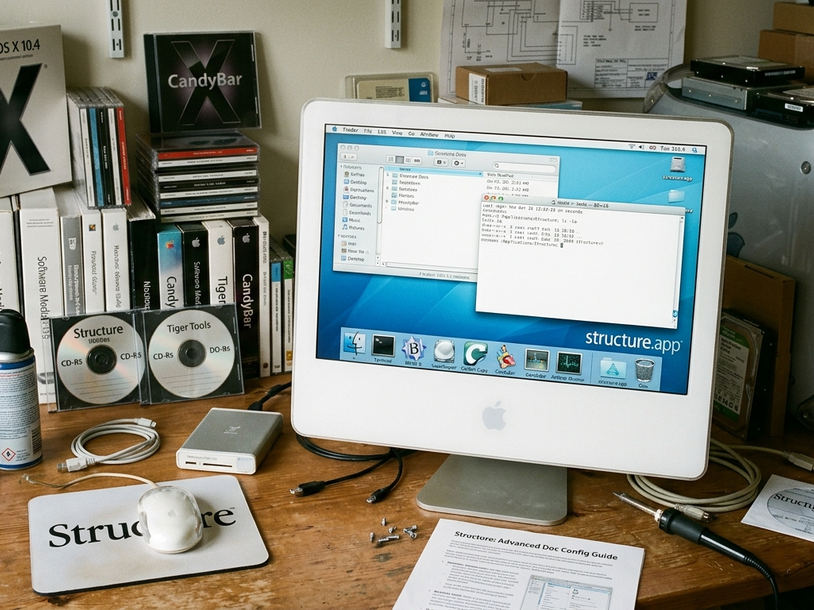
Vague names like final-icon-new-copy.icns make long-term theme maintenance impossible. You need a reliable method for finding exactly what you need, exactly when you need it.
Developing a naming convention involves front-loading the most critical sorting variable—the asset category, so that Finder automatically groups related icons together when sorted alphabetically.
Use a 4-part hyphenated naming string, such as folder-aqua-projects-blue-v2.icns, to ensure searchability across thousands of files. Include the category, theme, object, color, size, and version where useful. Prefixes like app-, folder-, drive-, and dock- make Finder sorting instantaneous.
Check Sizes and Formats Before Applying the Theme
Not all image files behave the same way in macOS. There is a massive practical difference between using.png files with transparent backgrounds for quick folder customization versus compiling proper.icns packages for application bundles.
Verifying formats requires opening legacy.icns files in Preview to check if they contain the necessary high-resolution layers, rather than just relying on how the Finder thumbnail renders. Finder thumbnails lie. They scale up low-resolution assets, masking their true quality until you apply them.
Identify legacy icons that peak at 128x128 pixels, which will appear blurry on displays exceeding 109 pixels per inch. Applying a 128x128 pixel legacy OS X icon to a modern Retina display results in a heavily pixelated blur when viewed in the Dock. Some vintage icon sets look authentic this way, but the pixelation should be an intentional aesthetic choice, not a surprise.
Always keep high-resolution source files where possible so icons look sharp in Finder’s large icon view and Dock magnification.
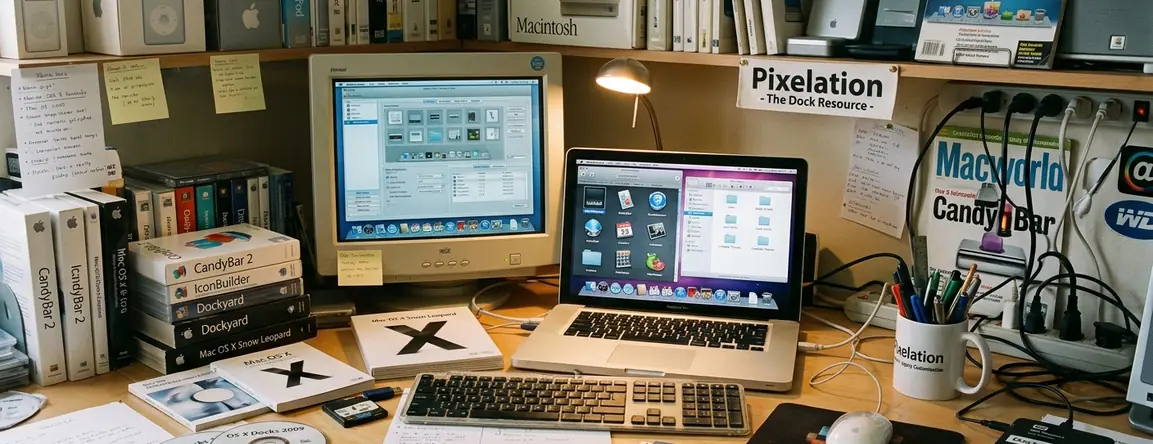
Applying icons in batches involves targeting one specific UI layer at a time. Start with static elements like external drives before moving to dynamic elements like Dock aliases. This isolates caching issues and prevents your desktop from mixing three incomplete themes at once.
Field experience revealed that waiting 24 to 48 hours between batch applications to monitor how the system cache handles the new.icns files across reboots is a reliable method for ensuring stability.
Keep a plain-text change log. List what was changed, where the replacement came from, and which original icon should be restored if needed.
Know the Limits: Caches, App Updates, and Legacy OS X
This guide focuses on organizing and maintaining custom desktop icon themes. It does not cover bypassing macOS security, modifying protected system resources, or distributing copyrighted icon packs.
Defining the scope requires acknowledging that modern system architectures actively resist deep UI modification, forcing customization to happen at the user-space level rather than the system root. While this approach provides a stable foundation for user-space customization, it cannot prevent Apple's periodic system updates from resetting default application icons.
System updates typically overwrite custom icons applied to default applications within a 30 to 90-day update cycle.
Risk Factor: Modifying app bundle icons directly will break the code signature on macOS 11 and later, causing the application to crash on launch unless the icon is applied strictly via the Finder's Get Info window.
Legacy OS X systems may be easier to personalize in some areas, but they are harder to maintain because old tools, file formats, and archives vary wildly in reliability.
Establish a Maintenance Routine
A theme is never truly finished; it just enters a maintenance phase. Building a maintenance routine means treating new downloads as untrusted assets, passing them through a quarantine folder where they are inspected for missing resolutions before being integrated into the main library.
Run a quarterly check to archive unused icons into the 'Retired' folder, keeping the active 'Installed' directory under 50 items for easier management.
Icon Pack Intake Checklist
- Extract downloaded archive into a temporary 'Quarantine' folder.
- Open the.icns file in Preview to verify the presence of high-resolution layers (512x512 or 1024x1024).
- Rename the file using the established 4-part convention (category-theme-object-color.icns).
- Move the verified file to the 'Icon Library' and back up the original archive to the dedicated partition.







Discussion
Share your thoughts.
Write a Comment