
Mapping the Hardware and Software Dependencies First
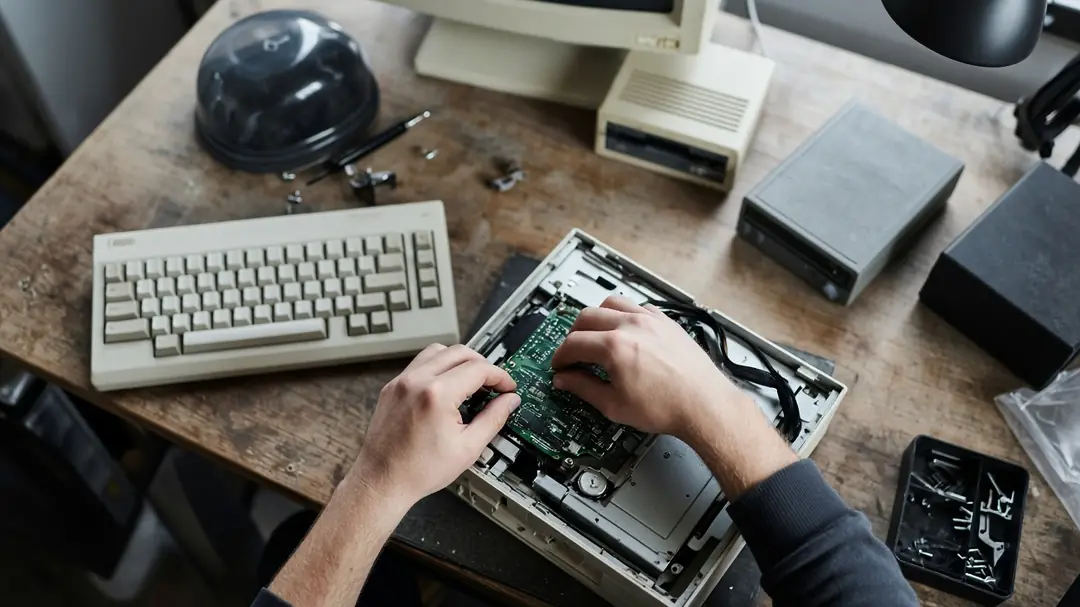
The safest way to revive an old Quartz Composer screensaver involves mapping its software and hardware dependencies before editing, reinstalling, or converting anything. A screensaver operates as a combination of a composition file, a saver host, optional plug-ins, OS X frameworks, processor architecture, graphics hardware, and display arrangement. Mapping the dependency stack first helps prevent accidental resource fork corruption. This workflow isolates the composition file from the saver host before any execution is attempted.
CoreImage.framework and OpenGL.framework dependencies dictate how the file interacts with the system. Visual programming environments rely heavily on these specific system libraries to render complex node graphs. Missing libraries cause immediate rendering failures. PowerPC G4/G5 targets require different handling than Intel Core Duo architecture targets. The underlying architecture dictates how the compiled code executes within the operating system environment. Identifying these elements provides a stable baseline for the repair process.
The workflow moves through identification, compatibility, controlled testing, fault isolation, performance tuning, multi-display behavior, and preservation. The order matters because rushing the process often leads to corrupted files or system instability.
Inspecting the Package Contents Safely
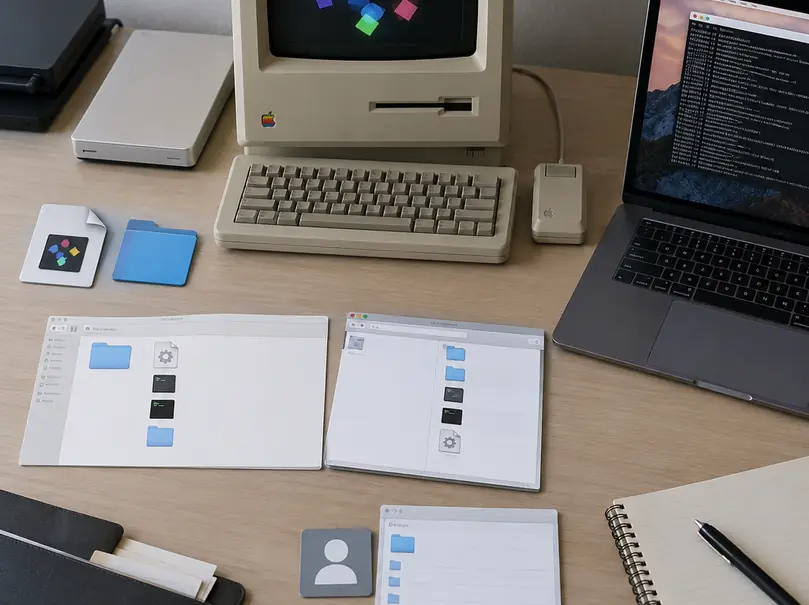
Distinguish a standalone.qtz composition from a.saver bundle. A bundle may contain a Quartz composition, executable code, resources, or third-party plug-ins. Avoid double-clicking the file, which could execute unknown binaries prematurely. Use Finder's 'Show Package Contents' to expose the internal directory structure safely. This non-destructive approach reveals the internal components without triggering the operating system's launch services.
Look inside the Contents/Resources/ and Contents/MacOS/ directory paths. You will find composition files, plug-in folders, media assets, and architecture-specific components. The internal directory structure dictates how the operating system loads the visual elements. Missing assets within the Resources folder halt the rendering pipeline. Compiled binaries within the MacOS folder execute the core logic required by the saver host.
File extensions like.qtz and.saver provide immediate identification clues. Package structure and Finder metadata offer further details regarding the file's origin and requirements. Opening a duplicate in Quartz Composer reveals the internal patch network. Apple provides extensive documentation on these structures; reviewing Apple’s archived Quartz Composer User Guide clarifies the expected baseline behavior of these files. Understanding the internal routing of the node graph helps identify potential points of failure.
Aligning OS X Versions with Graphics Hardware
Build a practical compatibility matrix around the actual Mac on the desk. Note the model, OS X version and build, PowerPC or Intel architecture, graphics card, VRAM, Quartz Composer version, and connected displays. Compositions using only built-in patches move easily between systems. Files requiring custom patches, bundled code, external media, camera input, or network resources demand strict environment matching.
The original developer's read-me files may seem sufficient for compatibility mapping. The OS X 10.6 Snow Leopard 32-bit plugin deprecation boundary can make those legacy text files inaccurate for Intel machines. Architecture-specific plug-ins prevent an otherwise intact composition from loading. GPU-dependent effects render differently across graphics generations. Target environments typically span OS X 10.4 Tiger through 10.6 Snow Leopard builds.
Hardware requirements often specify 64MB to 256MB GDDR3 VRAM for optimal performance. Matching hardware configurations help provide the resources needed to render complex node graphs. Graphics memory dictates the maximum resolution and texture quality available to the rendering engine. Insufficient VRAM causes severe frame drops, visual artifacts, and system instability during complex visual sequences.
Isolating Faults Through Staged Testing
Execute a staged test procedure to isolate faults. Preserve the original file and work exclusively from a duplicate. Install the duplicate for the current user first. Close unrelated applications and disconnect unnecessary inputs. Test the preview mode before full-screen activation. Run the test through a newly created, temporary user account. This prevents existing ~/Library/Preferences/ByHost/ files from contaminating the diagnostic baseline. Account-level issues become isolated without altering the main setup. System preferences bind screensaver settings to specific hardware identifiers. A clean user account provides a neutral testing environment.
Diagnostic Sequence for Visual Failures
Turn symptoms into a diagnostic sequence. A blank preview points to missing assets, unsupported patches, absent custom plug-ins, or unavailable inputs. Console.app logs from the initial 30-to-60-second preview window can reveal these missing components. A crash indicates bundle code errors, architecture mismatch, or damaged resources. Monitor system resources closely. CPU thread usage jumping from a 5% idle state to an 85% full-screen load requires immediate attention. High CPU usage indicates inefficient patch routing or missing hardware acceleration. System logs may provide the file paths of missing dependencies. Identifying the point of failure streamlines the repair process.
Quartz Composer Screensaver Diagnostic Checklist
- Duplicate the original.saver or.qtz file and store the master in a secure directory.
- Right-click the duplicate and select 'Show Package Contents' to verify internal.qtz files and MacOS binaries.
- Create a temporary user account to isolate ~/Library/Preferences/ByHost/ files during testing.
- Monitor Console.app logs during the initial 30-to-60-second preview window.
- Establish a single-display baseline at 1024x768 resolution before testing multi-display setups.
Managing Render Loads Across Multiple Displays
Larger render areas, multiple displays, particle-heavy scenes, layered Core Image filters, video textures, and feedback effects increase CPU or GPU load. The tuning sequence establishes a single-display baseline at 1024x768 resolution before introducing a secondary monitor. This helps tie any subsequent GPU load spikes to the multi-display rendering transition. Reconnect the second monitor or raise the display resolution only after confirming stability.
Mirrored output, a single composition stretched across displays, and separately rendered output behave differently. The saver host, OS X release, and composition design dictate this behavior. Particle count reduction parameters within the composition editor offer a practical method for managing heavy loads. Adjusting the internal parameters requires familiarity with the node graph. Lowering the particle count significantly reduces the computational burden on the graphics hardware.
The dual-display rendering behavior described applies primarily to OS X 10.5 Leopard and earlier, as later window server changes altered how Quartz Composer handles stretched contexts across multiple monitors. These historical operating system limitations help distinguish expected behavior from faults.
Archiving the Composition and Its Provenance
Keep an untouched master copy alongside a clearly named working copy. Repairing the only surviving file risks permanent data loss. Archive the.qtz or.saver bundle with required plug-ins, media assets, original documentation, and download page details. Include notes about the Mac and OS X release on which it operated successfully.
Archivists select.dmg or.sitx formats for storage rather than standard ZIP compression. Quartz Composer resource forks can be stripped during standard ZIP compression, damaging legacy Mac metadata. These disk image and archive formats help preserve the original file structure. Generate a checksum with an available system utility and store it in a plain-text manifest. Use md5 or shasum terminal commands for checksum generation. Move the archived packages to secure storage using FireWire 400 Target Disk Mode transfers. Resource fork preservation requires suitable archive formats, as digital preservation guidelines indicate. Maintaining the original metadata ensures future compatibility testing remains accurate.
A Workbench Recovery on a Power Mac
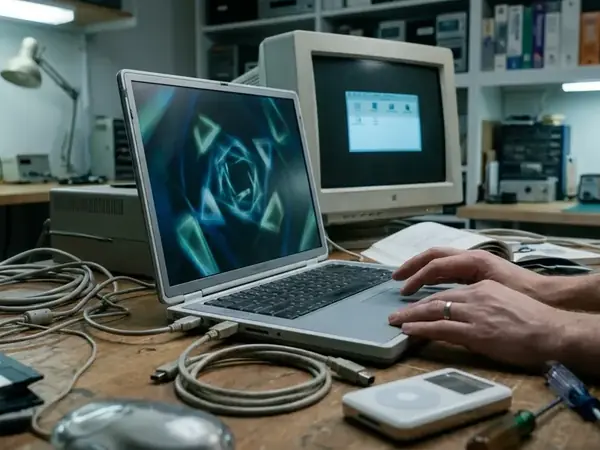
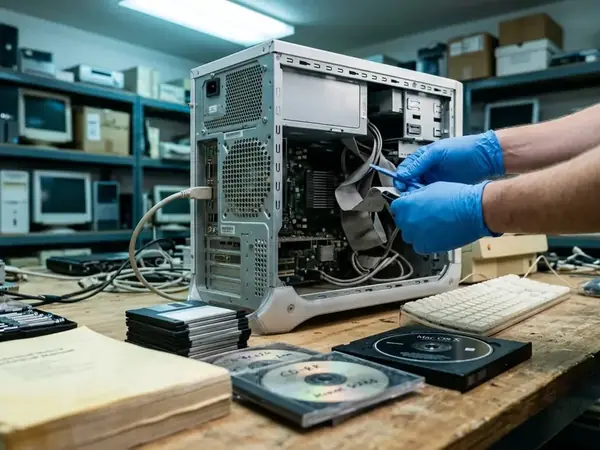
The workbench holds a dual-display Power Mac running OS X 10.4.11 build 8S165. A hobbyist tests a recovered.saver bundle. The original file sits safely archived on an external drive. A duplicate installs only for the newly created test account. The first run activates on a single monitor to establish a baseline.
The System Preferences pane loads, displaying a completely blank preview window. The hobbyist halts the test immediately. Opening Console.app reveals a missing.plugin file referenced by the main composition. The exact dependency sits on a backup drive. Moving the missing plug-in into the correct directory takes just a few moments. This 15-to-20-minute isolation and recovery window brings the vintage visual effect back to life across both screens. The complex node graph renders smoothly, filling the workspace with dynamic, hardware-accelerated graphics.




Discussion
Share your thoughts.
Write a Comment