
Why a Widget Beats Another Browser Tab
Loose notes die in the wrong container. A heavy document editor takes too long to wake. A browser tab wants a network and a bookmark you will forget the moment a machine is open on the bench.
Dashboard arrived as a standard system layer with OS X 10.4 Tiger in April 2005 and stayed through macOS 10.14 Mojave. Small utilities were web pages with a tight job. HTML held the words. CSS drew the frame. JavaScript answered the keystrokes. One function key pulled the layer forward over the desktop you were already using.
I stopped opening a text file for shortcuts once that pattern clicked, and started keeping the reference inside a widget bundle instead.
The same three layers carry an offline shelf. Keyboard shortcuts, Terminal explanations, and vintage Mac repair notes belong in files that load from local disk and stay summonable when the shop connection is down. MacReference.wdgt is the running example: categorized entries, one search field, and nothing outside the bundle. The layer itself left with macOS 10.15 Catalina in October 2019, which is why this shelf belongs on the releases that still open Dashboard.
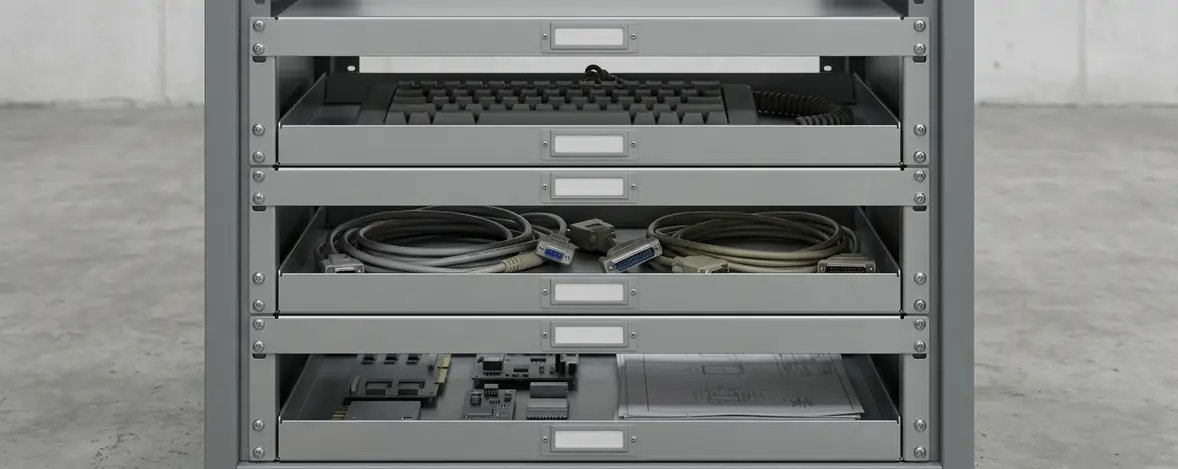
Set beside a browser bookmark, the widget wins on focus and loses on room to sprawl. The frame is fixed. The job is one list. Set beside a word-processor file, it wins on speed: the function key, then a filter, then the line you needed. You pay for that by editing HTML and living inside a 320-by-400 pixel shell. On a repair bench that trade is the point. The note is there while your hands are still on the machine.
Shape Each Note So Search Can Find It
How do you stop a shortcut from collapsing into a paragraph you cannot scan at arm's length?
Use one structure for every item. Title. Category. The literal shortcut or command, character for character. A plain-text explanation. An applicability tag naming the OS X version or the Mac model when the note depends on either. Five fields, same order, every time. Search walks those fields. Your eye does too.
Three entries stay in the tutorial so the markup never turns abstract.
- Command-Tab lives under application switching. The literal string is the shortcut. The explanation says it cycles running applications.
- pwd lives under Terminal. The command prints the current working directory. A later query for those words has to find this row even when you never type the three letters.
- The third entry is yours: a vintage hardware repair note with the model written on it. A screw order for one aluminum portable is the wrong map for the next chassis.
Applicability sits in the entry because the step inherits its machine. Command-Tab's behavior belongs to the OS X release you name. A repair sequence belongs to the model printed beside it. Leave the tag off and the list looks finished while the advice has nowhere to stand.
Model Tag First
Write the Mac model or the OS X version into the entry before you trust the steps. A repair line without that tag is a guess in clean markup.
A separate JSON file or a local SQLite store looks orderly if you are used to newer browsers. On the WebKit builds that shipped with early Dashboard, local-file requests and database APIs wander from release to release, and a second file turns a hand edit into a two-place chore. Each note as a semantic article inside index.html keeps the editable record and the rendered list in one place. Change a sentence, save, and the shelf changes with it.
The Four-File Shell for MacReference.wdgt
If you are laying this out for the first time, keep the folder boring. Four files, root level, no nested assets. Relative paths then survive the rename from a normal folder into a package.
MacReference.wdgt/
  index.html
  style.css
  script.js
  Info.plist
Info.plist is named now. Its keys wait until the bundle has to identify itself to Dashboard. For a layout pass, the other three files are the whole interface. A stylesheet buried in a subfolder is one move away from a broken link, and bare unstyled text is the symptom that follows.
No remote stylesheet. No web font. Lucida Grande carries the labels. Monaco or Menlo carries the command strings. Those faces are already on a classic OS X install, so the widget does not pause to fetch type.
Regions the Page Must Show
The page has to show its regions before any script runs. A visible label sits on the search field. The input is an ordinary text control. A status line states how many entries remain visible. The list is a scrollable block. An empty-results sentence lives in the HTML so a miss should read as a sentence, not a blank panel.
<label for="q">Search notes</label>
<input id="q" type="text">
<p id="status">3 entries</p>
<p id="empty">No matching notes.</p>
<div id="list">
  <article class="entry">
    <h3 class="title">Command-Tab</h3>
    <p class="category">Application switching</p>
    <p class="command">Command-Tab</p>
    <p class="explain">Cycles running applications.</p>
    <p class="applies">OS X 10.4 and later Dashboard-era releases</p>
  </article>
  <article class="entry">
    <h3 class="title">pwd</h3>
    <p class="category">Terminal</p>
    <p class="command">pwd</p>
    <p class="explain">Print the current working directory.</p>
    <p class="applies">Classic OS X Terminal</p>
  </article>
  <article class="entry">
    <h3 class="title">Reader repair note</h3>
    <p class="category">Hardware</p>
    <p class="command">Model-specific steps</p>
    <p class="explain">Replace this text with the repair note you actually use.</p>
    <p class="applies">Tag the Mac model here</p>
  </article>
</div>
<script src="script.js"></script>
Place the script element immediately before the closing body tag. By then every article node is in the document, and script.js can walk them without a load-event wrapper.
Script After Markup
Keep the script tag after the entry list. Initialization then sees real nodes and can skip a load listener that older Dashboard WebKit handles unevenly.
The shell dimensions are part of the contract with the plist you will write next. The page is 320 pixels wide and 400 pixels high. The results block is 310 pixels tall with overflow-y set to auto, which pins the search bar and lets the list scroll underneath it.
body {
  margin: 0;
  width: 320px;
  height: 400px;
  font-family: "Lucida Grande", sans-serif;
  overflow: hidden;
}
#list {
  height: 310px;
  overflow-y: auto;
}
.command {
  font-family: Monaco, Menlo, monospace;
}
#empty {
  display: none;
}
A repeated entry class on ordinary elements is enough for the script. getElementsByTagName can collect the articles. Nothing on this page needs a selector engine.
A Loop Old WebKit Still Understands
Early Dashboard WebKit, the engines in OS X 10.4 and 10.5, will not rescue you with modern array methods, and the input event is a poor hook on those builds. Write the filter the way those engines expect: var, a named function, an indexed for loop, getElementsByTagName, and textContent with an innerText fallback.
Two ways to refresh a list sit side by side. Rebuilding the markup with innerHTML throws away the nodes on screen and can drop keyboard focus. Toggling display on the nodes already in the page leaves focus where it was and skips a full redraw on every keystroke. For a 320-pixel shelf, the toggle is the calmer choice. The articles stay put. Only their visibility changes.
What a Keystroke Has to Match
The query has to see more than the title. Title, category, command or shortcut, explanation, and applicability join one normalized string. Lower case. Leading and trailing spaces stripped. Runs of internal space collapsed to a single space. That is why typing working directory retrieves the pwd entry: the phrase lives in the explanation, and the search does not care which of the five fields held it.
var input = document.getElementById("q");
var statusLine = document.getElementById("status");
var emptyMsg = document.getElementById("empty");
var entries = document.getElementsByTagName("article");

function normalize(raw) {
  var s = raw || "";
  s = s.replace(/^\s+|\s+$/g, "");
  s = s.replace(/\s+/g, " ");
  return s.toLowerCase();
}

function textOf(node) {
  var raw = "";
  if (!node) {
    return "";
  }
  if (node.textContent) {
    raw = node.textContent;
  } else if (node.innerText) {
    raw = node.innerText;
  }
  return normalize(raw);
}

function entryBlob(entry) {
  var blob = "";
  var heads = entry.getElementsByTagName("h3");
  var bits = entry.getElementsByTagName("p");
  var i;
  if (heads.length) {
    blob = textOf(heads[0]);
  }
  for (i = 0; i < bits.length; i++) {
    blob = blob + " " + textOf(bits[i]);
  }
  return blob;
}

function filterNotes() {
  var query = normalize(input.value);
  var shown = 0;
  var i;
  var entry;
  var match;
  for (i = 0; i < entries.length; i++) {
    entry = entries[i];
    if (entry.className != "entry") {
      continue;
    }
    if (query === "") {
      match = true;
    } else {
      match = entryBlob(entry).indexOf(query) !== -1;
    }
    if (match) {
      entry.style.display = "";
      shown = shown + 1;
    } else {
      entry.style.display = "none";
    }
  }
  var label = shown + " shown";
  if (typeof statusLine.textContent != "undefined") {
    statusLine.textContent = label;
  } else {
    statusLine.innerText = label;
  }
  if (shown === 0) {
    emptyMsg.style.display = "block";
  } else {
    emptyMsg.style.display = "none";
  }
}

input.onkeyup = filterNotes;
input.onchange = filterNotes;
filterNotes();
Both onkeyup and onchange sit on the input: one catches typing, the other catches a cleared field and paste events that older WebKit reports late. When the function key pulls the shelf over the desktop and three letters land in the search box, the status line drops to "1 shown" and the matching repair note stays waiting under the cursor.
Shelf Stays Local
MacReference never calls Widget.system or XMLHttpRequest. Notes stay in static HTML nodes, so the bundle runs the same way on an offline OS X 10.4 install and on an air-gapped repair bench.
The Plist Dashboard Actually Reads
Dashboard's server reads a short property list. Seven keys carry display and identity. Permission flags stay out.
<?xml version="1.0" encoding="UTF-8"?>
<!DOCTYPE plist PUBLIC "-//Apple//DTD PLIST 1.0//EN" "http://www.apple.com/DTDs/PropertyList-1.0.dtd">
<plist version="1.0">
<dict>
  <key>CFBundleIdentifier</key>
  <string>org.example.macreference</string>
  <key>CFBundleName</key>
  <string>MacReference</string>
  <key>CFBundleDisplayName</key>
  <string>Mac Reference</string>
  <key>CFBundleVersion</key>
  <string>1.0</string>
  <key>MainHTML</key>
  <string>index.html</string>
  <key>Width</key>
  <integer>320</integer>
  <key>Height</key>
  <integer>400</integer>
</dict>
</plist>
CFBundleIdentifier is an illustrative reverse-domain string, org.example.macreference. It names the bundle to the system. Use that example form, or your own unused identifier. Do not borrow a real third-party domain.
CFBundleName and CFBundleDisplayName are what Finder and Dashboard show. MacReference and Mac Reference keep the file name and the human label close. They do not have to be identical strings.
CFBundleVersion starts at 1.0. Bump it when a revision goes out. MainHTML must be the string index.html, the file at the root. A mismatch opens a package with nothing to render.
Width is 320. Height is 400. Those integers have to agree with the CSS shell. A plist that says 400 while the stylesheet clips earlier is how the last repair note vanishes under the edge.
AllowNetworkAccess and AllowSystem stay out of the dict. With those keys absent, Dashboard can treat MacReference as a local document viewer and skip the prompt for a higher run privilege. The shelf never needed either flag.
Rename the folder so the name ends in.wdgt and Finder turns it into an opaque bundle. The files remain. Show Package Contents, from the context menu, is how you get back in. During day-to-day writing, keep an unbundled working copy so you are not fighting that opacity on every sentence.
Six Queries on the Machine That Will Run It
A desktop browser will show you broken markup. Dashboard will show you whether the bundle, the plist, and that older WebKit agree. Run the checks on the OS X install that will host the widget. Open Dashboard only on a system from OS X 10.4 through macOS 10.14, where the layer is still present and can launch the bundle.
The sequence has six input states. Each one has an outcome you should see on that machine. Innermindmedia is handing you the checklist; the pass or fail happens on the Mac in front of you.
- Exact title. Type Command-Tab. That entry stays. Rows that lack the string drop.
- Explanation-only hit. Type working directory. The pwd row remains because the phrase sits in its explanation.
- Mixed case. Type PWD or Working Directory. Normalization folds case, so the same rows stay.
- Leading and trailing spaces. Type a padded query. The stripped string still matches.
- A string you know is absent. The empty-results sentence appears, and the status count goes to zero.
- Clear the field. Every entry returns.
Then add 8 to 12 temporary dummy entries, enough to overflow the 310-pixel results viewport. Scroll to the final item and confirm it clears the bottom border. The search field has to stay reachable while that scrollbar moves. If the last row is clipped, compare the stylesheet height with the Height integer in the plist before you blame the filter.
Turn every network interface off and open the widget again. Initialization should finish with no stall. A hang here usually means a remote URL crept into the HTML or CSS. This build references none.
When the Package Misbehaves
- An unrecognized folder icon points to a missing Info.plist, or to one nested instead of sitting at the bundle root.
- Unstyled text means a relative path in index.html no longer points at style.css.
- Dead filtering, often with a silent script, means ES6 syntax has met a WebKit that cannot parse it. Stay with var and indexed loops.
- Clipped bottom entries mean style.css and the plist Height integer disagree by pixels.
Close the Copy, Then Find the New Line
Dashboard keeps the widget you already opened in memory — the layer in front of you can keep showing the old nodes. Change the HTML inside an installed bundle and the visible shelf may ignore the save. The reliable loop is dull, which is why it works.
Back up the working folder first. Edit entries in that unbundled directory, not in the copy Dashboard has loaded. When you distribute a revision, set CFBundleVersion from 1.0 to 1.1 in Info.plist before you package it. Installed user widgets live in ~/Library/Widgets/, apart from the project folder you edit.
Close Before Replace
Close the running MacReference instance, then replace the bundle in ~/Library/Widgets/ and open the new copy. Otherwise you are reading cache while the revised files sit unused on disk.
Keep the source folder and an archive of the finished.wdgt together on local storage. The next repair note should not depend on a download. After the version bump, confirm the pwd line reads Print the current working directory, reopen with the network still off, and type working directory. The filter should leave that node and hide the rest.
The bench machine is quiet, interfaces dark. You close the old instance, put the revised MacReference.wdgt into ~/Library/Widgets/, and press the Dashboard key. The search field takes working directory. One row remains: pwd, the explanation still reading Print the current working directory, the applicability tag still naming classic OS X Terminal. The model-tagged repair note waits in the same HTML for a different query. Beside the keyboard, the working folder and the archived bundle sit on the same local disk, ready for the next line you actually use.






Discussion
Share your thoughts.
Write a Comment