
Which clock screensaver suits your vintage Mac?
Which clock screensaver can your vintage Mac run comfortably—and can you read it from across the room?
My starting point is the view from the chair away from the desk. A clock face can look wonderfully crisp while you are choosing it, then demand a squint once you settle back. That is a familiar tension with vintage Mac customization: the display becomes part of the room, while its controls remain within arm’s reach. Choose from both positions.
Three candidates make that choice interesting. Fliqlo uses recognizable flip-clock numerals. Word Clock makes typography the face of the clock. PolarClock turns time into a circular visualization that takes a little learning to read.
This shortlist follows three practical questions: how quickly can you read the time, do you enjoy the visual character, and does the particular release suit your Mac? Those questions are more useful here than a directory of similar clock faces.
Check the OS X release before choosing a download
Can you download any copy bearing the right screensaver name? The requirements belong to the individual release. A familiar name can span builds intended for different systems, so start with the machine rather than the archive.
Keep these details beside you before downloading:
- Exact OS X version: record the point release as well as the main version name.
- Processor architecture: establish whether the Mac uses PowerPC, 32-bit Intel, or 64-bit Intel.
- Screensaver build: identify the specific release offered by the download.
- Runtime requirements: check for required local plugins or frameworks.
A modern 64-bit bundle belongs to a different compatibility target from a PowerPC or 32-bit Intel system. Check the build’s stated requirements against your notes before transferring it to the vintage Mac. This also gives you a sensible way to label any installer you decide to keep.
Keep Flash Dependencies Visible
Some older clock screensaver releases depend on Flash and require the corresponding legacy system plugin to render their screensaver bundle. That dependency can explain a blank black screen when the bundle itself appears to be installed.
For a build with that requirement, preserve its matching runtime installer alongside the screensaver. This is an archive-completeness check worth making before you spend time arranging a collection of classic OS X utilities.
Fliqlo makes the numerals the main event
Fliqlo is the straightforward starting point if your priority is reading the time at a glance. Its split-card presentation borrows the familiar language of a flip clock: prominent numerals, strong contrast, and a transition that makes the changing time part of the design.
Begin with a simple preview. Read the numerals at the desk, then move to your normal viewing position. On a smaller vintage display, pay attention to whether the split-card shapes still resolve cleanly. Knowing what the clock should say can make a close-up preview feel easier than everyday use.
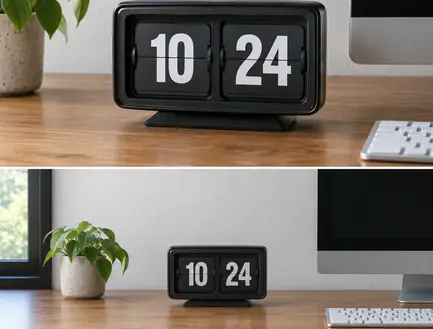
Next, watch a flip transition. The movement gives an otherwise restrained face its character. Judge whether that brief change remains comfortable in the room where the Mac lives, especially if the screen sits near your usual line of sight.
For a more deliberate check, glance away and return without leaning forward. This separates recognizing familiar numerals from studying them. Fliqlo earns its place on the shortlist when the face stays readable at that ordinary, slightly inattentive distance.
Word Clock asks you to read the display
What changes when the clock tells time with words? You exchange immediate numeral recognition for a small reading task: locating the relevant text and assembling the time from it.
That makes Word Clock appealing when you want typography to become the display’s main visual feature. The letterforms and arrangement carry more of the personality than a conventional dial or a pair of large digits. For someone who enjoys mac icons & themes, this is another way to let the interface establish the room’s mood.
Give that appearance a practical test. From your usual seat, look away from the screen, then look back and find the current time. Notice where your eye lands first and how much scanning follows. Repeat after the display changes so you are reading the clock rather than remembering where to look.
A pleasing composition can reward a longer look. An everyday room clock also needs to survive a casual glance. Decide which of those jobs matters more before letting the novelty of full-screen type make the choice for you.
PolarClock turns time into concentric movement
PolarClock has the strongest learning curve of these three visual languages. Its circular display uses concentric arcs to represent time, giving the screen a changing geometric character instead of rows of numerals or words.
Start by watching how the arcs move. Then work out how their changing lengths correspond to the time. Stay with the preview until you can follow that encoding through a transition; an attractive still image tells you little about the experience of reading it.
Once the pattern feels familiar, try extracting the time without checking another clock first. That is the useful progression from enjoying the animation to using the display.
There is room for both purposes in screensavers & visual effects. PolarClock may suit a Mac whose screen you enjoy watching, while a flip-clock face may better serve a desk you glance toward between other tasks. Choose according to the attention you want to give it.
Choose between numerals, words, and circular arcs
The clearest comparison is the reading task each design puts between you and the time.
| Screensaver | Visual language | Reading task | Reason to shortlist |
|---|---|---|---|
| Fliqlo | Split-card flip numerals | Recognize the digits | A restrained face for quick distance checks |
| Word Clock | Time expressed through typography | Locate and read the words | Letterforms become the screen’s main feature |
| PolarClock | Concentric circular arcs | Interpret the circular display | Changing geometry rewards a longer look |
Before installing any candidate: match that specific release to your OS X version, architecture, and required runtime components.
Preview the clock on its intended Mac
Finish the selection on the machine that will run it. A useful installation check follows the whole journey back to the desktop.
- Select one candidate and verify its release requirements against the Mac.
- Follow that release’s installation instructions, including any runtime requirements.
- Open the Mac’s screensaver controls and preview the installed clock.
- Inspect it at the desk and from its normal viewing distance.
- Watch a complete minute transition, then use the normal keyboard or mouse action to exit.
Check that the desktop responds normally before leaving the clock selected. Keep the tested build and its required installer components together for future restoration.
A Flash-dependent clock keeps part of its working machinery outside the screensaver bundle: in the system plugin that renders its face.



Discussion
Share your thoughts.
Write a Comment