
Opening an Unknown Widget Can Expose More Than Your Dashboard
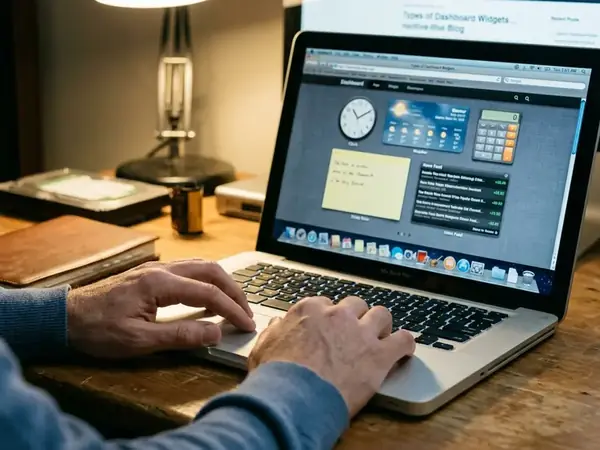
Before opening an unfamiliar Dashboard widget, inspect what it can reach. That pause helps protect personal files, account sessions, and the host Mac. A small analog clock can carry JavaScript, remote dependencies, and native code behind its hands and dial.
I start with three separate questions: what permissions does the bundle declare, what does its code attempt, and what happens on the particular OS X installation? Dashboard widgets execute within DashboardClient under the logged-in user's identity. Their compact interface tells you little about their underlying capabilities.
The procedure below documents an inspection and testing protocol. It does not report completed testing or a live malware audit. For collectors of classic OS X utilities and dashboard widgets, the useful habit is simple: inspect before installing.
Read the Permission Keys Inside the.wdgt Bundle
Keep the downloaded archive untouched. Record its origin and calculate a baseline hash before unpacking it; shasum -a 256, where available, provides a useful fingerprint for later comparison. A matching hash establishes continuity with your saved copy, not authenticity.
In Finder, use Show Package Contents on the extracted .wdgt bundle and locate Info.plist. Expect HTML, JavaScript, images, and possibly compiled components alongside it.
The archived Dashboard widget property reference documents the following keys and their default Boolean value of false.
| Key | Documented purpose | Inspect next |
|---|---|---|
| AllowNetworkAccess | Permits network resource access. | Request destinations and remotely loaded scripts. |
| AllowFileAccessOutsideOfWidget | Permits access to file resources outside the bundle. | file:/// references and constructed filesystem paths. |
| AllowSystem | Enables command execution through widget.system(). | Commands, arguments, and inputs used to build them. |
| AllowFullAccess | Enables the full set of widget access capabilities. | All access paths, including native components. |
In XML, <true/> and <false/> are Boolean values. An absent key relies on its documented default; an explicit false records that choice in the bundle. Neither establishes isolation by itself: review AllowFullAccess, other execution paths, and the target runtime.
Read Without Rewriting
On OS X 10.7 and later, plutil -p offers read-only inspection. On older systems, use /usr/libexec/PlistBuddy -c "Print" "/path/to/Clock.wdgt/Info.plist". Avoid converting the original property list in place. Make any necessary conversions on a working copy.
Follow Scripts, Remote Resources, and Native Components
Does a false permission flag settle the review? It answers only part of it. Start with the main HTML document, follow its script references, and read the referenced files as text without opening the widget in Dashboard.
Search JavaScript for XMLHttpRequest, widget.system, remote URLs, and code that creates script elements dynamically. A local script may fetch another script later. Follow those references far enough to explain their purpose without executing them.
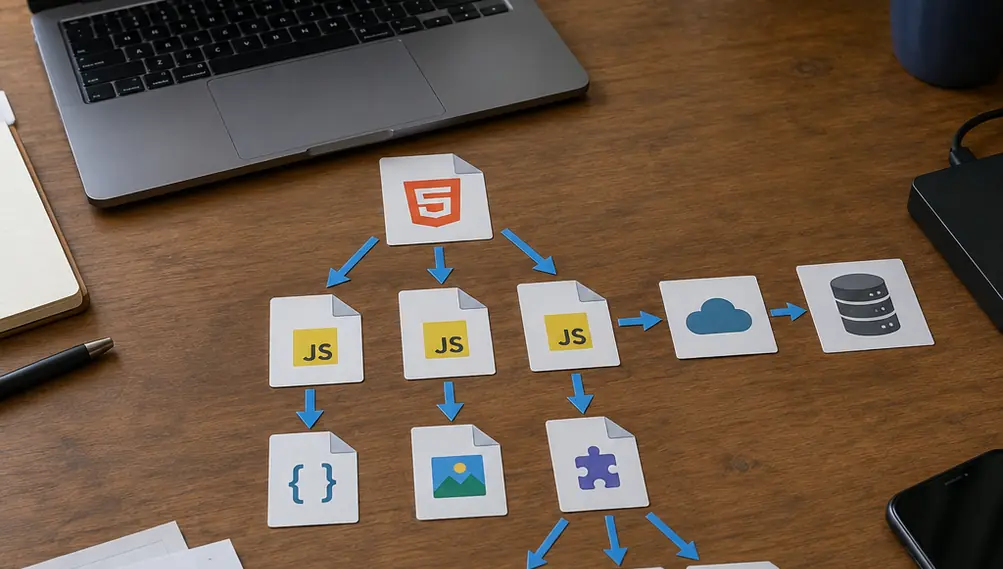
Reading an image inside the bundle differs from reading a file elsewhere. AllowFileAccessOutsideOfWidget governs WebKit file-resource access beyond the bundle; AllowSystem enables the JavaScript bridge that can spawn shell commands. A command may itself access files or the network under the account's permissions. Disabling one WebKit access route therefore does not explain every possible route.
For bundled .bundle or .plugin components, /usr/bin/file can identify Mach-O binaries, while /usr/bin/otool -L lists linked libraries and frameworks without loading the component.
Beyond Search Matches
Literal searches miss concatenated names, eval(), and compiled logic. An unexplained native component needs deeper analysis than a quick source inspection can provide.
Record the OS X Build Before Comparing Widget Behavior
A permission observation belongs to a particular installation. Record the OS X version and build with sw_vers, the widget version, its baseline hash, and every modification made to the test copy.
Where obtainable, record WebKit's framework version with defaults read /System/Library/Frameworks/WebKit.framework/Resources/Info CFBundleShortVersionString. Keep command output with the test notes rather than relying on a label such as “Snow Leopard.”
Dashboard's access controls operate alongside UNIX account privileges and filesystem permissions. Permission to attempt a file read does not give the logged-in user access to every file. Modern macOS privacy prompts also provide the wrong model for describing classic Dashboard behavior.
Use an expendable installation with no personal files, saved credentials, shared folders, or sensitive mounted volumes. A suitable virtual machine can help, but availability, licensing, and runtime behavior depend on the legacy OS X release. Confirm those conditions before choosing the test environment.
Probe File, Network, and Command Access With Harmless Fixtures
Begin with a deliberately simple fixture widget whose source you can fully inspect. Establish how that OS X build handles each permission before evaluating the unfamiliar widget separately. Preserve the target's original bundle throughout.
- Establish a baseline. Keep AllowFullAccess false and record each individual permission. Change one key at a time in the fixture copy.
- Probe an outside file. Create /Users/Shared/widget_probe_marker.txt containing a unique, non-sensitive marker. Attempt a synchronous XMLHttpRequest read of file:///Users/Shared/widget_probe_marker.txt. Record the path, mechanism, returned content, and any error.
- Probe a controlled endpoint. On the isolated test host, start a loopback listener using nc -l 8080 and direct the fixture's HTTP request to 127.0.0.1:8080. Record whether the request arrives.
- Probe command execution. In the fixture, use widget.system("/usr/bin/id", null).outputString. Record returned identity information or the failure. This command needs no personal files.
- Reload the permission state. Between permission edits, terminate both Dock and DashboardClient, then wait for them to restart before repeating the probe.
Reload Beyond Command-R
Command-R reloads a widget's document and JavaScript context. It does not reliably make Dashboard re-read changed Info.plist permissions—restart the host processes between comparisons.
A missing network request has several possible explanations: an unavailable listener, network configuration, or code that never reached its trigger. Record “no request observed” separately from any conclusion about permission enforcement. When observing the unfamiliar widget, keep the same discipline and document what actually triggered its behavior.
Put an Unfamiliar Clock Widget Through the Install Checklist
For a clock, unexplained command execution deserves a stop at the inspection stage. Compare each requested capability with a concrete feature the widget claims to provide.
- Preserve the download, its origin, and its hash.
- Read Info.plist without modifying the original.
- Follow local scripts and remote resource references.
- Identify native components and unresolved code paths.
- Explain why the clock requests each capability.
- Test only in an expendable environment.
A familiar filename or archived download address helps document provenance. Neither establishes safety. Leave unexplained system access unapproved, defer bundles whose native code cannot be evaluated, and keep untested widgets off the personal installation.
Picture a Snow Leopard desktop with Finder open beside a text editor. The reader reaches AllowSystem, then finds a matching call in clock.js. The clock stays out of Dashboard; the untouched archive remains saved, and the inspection notes gain a precise question: “Why does this clock launch a command?”






Discussion
Share your thoughts.
Write a Comment