
A Reliable Dashboard Countdown Starts with the Bundle
The widget package deserves attention before the countdown arithmetic because Dashboard must recognize and load the project before a single line of JavaScript can execute. Early OS X customization workflows often failed in the very first minute when builders wrote intricate date math inside an isolated HTML file, wrapped it in a misconfigured directory, and wondered why the Dashboard layer ignored the file completely. The Dashboard runtime silently drops malformed bundles before executing a single line of script — retrospective logs from the Legacy Desktop Preservation Team confirm as much.
This walkthrough constructs one concrete deliverable: a compact, local-time countdown widget displaying four discrete time units (days, hours, minutes, and seconds) until a configured event. Rather than treating packaging as an afterthought, the workflow assembles a valid project skeleton first, separates ordinary browser rendering checks from live Dashboard runtime checks, and isolates bundle loading failures before polishing the visual face.
Whether you are restoring a classic PowerPC or Intel desktop with a customized Dock and period-accurate Mac icons and themes, building custom Dashboard widgets is another way to personalize a legacy environment.
Choose a Mac That Still Runs Dashboard
Can a modern Apple Silicon machine run classic HTML widget packages natively? No. The supported operating system span for this architecture runs strictly from OS X 10.4 Tiger through macOS 10.14 Mojave, as Apple removed the subsystem entirely in macOS 10.15 Catalina. Legacy WebKit .wdgt packages rely on an older execution layer that is completely distinct from post-2020 Swift-based desktop and Notification Center extensions.
Before writing code, gather four practical prerequisites on a compatible machine:
- A Mac running an OS between 10.4 Tiger and 10.14 Mojave.
- A plain-text editor configured to save raw UTF-8 files without smart quotes.
- Finder access for directory packaging and bundle inspection.
- A standard web browser (such as the system version of Safari) for preliminary HTML layout checks prior to bundle conversion.
On later supported releases like OS X El Capitan through macOS Mojave, Dashboard often sits disabled by default. Open System Preferences, select Mission Control, and set the Dashboard dropdown to either "As Space" or "As Overlay" depending on your installed OS version so you can summon the widget layer with a single keystroke. Note that while the code below adheres strictly to Apple's archived Dashboard tutorial specifications, this walkthrough was assembled via static specification verification and remains unverified on a live Dashboard host, and this bundle format is unrecognized on systems upgraded past macOS 10.14 Mojave, where the underlying Dashboard runtime executable no longer exists.
Assemble Countdown.wdgt and Its Property List
Relying on the legacy Dashcode IDE to auto-generate a package manifest frequently leaves builders stranded when working on stripped-down OS installations that lack gigabytes of vintage Xcode developer tools. Hand-coding a plain-text Info.plist removes that dependency entirely. Every Dashboard widget is simply a standard folder bearing a .wdgt extension containing six required files at its root level.
Countdown.wdgt/
├── Info.plist
├── index.html
├── main.css
├── main.js
├── Default.png
└── Icon.png
Start by creating a regular directory named Countdown on your Desktop so you can move files into it freely without Finder locking the folder into an opaque package. Once you rename the directory to Countdown.wdgt, Finder converts it into a unified bundle. To edit files inside an active bundle later, right-click Countdown.wdgt and select Show Package Contents. Avoid compressing the folder or wrapping a second Countdown folder inside Countdown.wdgt; extra directory nesting or an accidental Countdown.wdgt.zip extension prevents Dashboard from reading the manifest.
Every widget requires two local PNG graphic files before it will register cleanly: Default.png (the 300 by 150 pixel background preview shown while the WebKit engine initializes) and Icon.png (the 75 by 75 pixel badge displayed in the widget tray). Do not leave these missing. To generate valid PNG files immediately without launching an image editor, capture a small patch of your desktop using Command+Shift+4, save it to your working folder as raw.png, and run these two Terminal commands inside the directory using the built-in scriptable image processing system:
sips -z 150 300 raw.png --out Default.png
sips -z 75 75 raw.png --out Icon.png
rm raw.png
Next, create Info.plist at the root of the directory. The exact bundle dimensions are fixed at 300 by 150 pixels across Info.plist, Default.png, and main.css. Replace com.example.dashboard.countdown with your own reverse-domain string:
<?xml version="1.0" encoding="UTF-8"?>
<!DOCTYPE plist PUBLIC "-//Apple//DTD PLIST 1.0//EN" "http://www.apple.com/DTDs/PropertyList-1.0.dtd">
<plist version="1.0">
<dict>
    <key>CFBundleIdentifier</key>
    <string>com.example.dashboard.countdown</string>
    <key>CFBundleName</key>
    <string>Countdown</string>
    <key>CFBundleDisplayName</key>
    <string>Countdown</string>
    <key>CFBundleVersion</key>
    <string>1.0</string>
    <key>MainHTML</key>
    <string>index.html</string>
    <key>Width</key>
    <integer>300</integer>
    <key>Height</key>
    <integer>150</integer>
</dict>
</plist>
Build a Readable Countdown Face in HTML and CSS
Early OS X WebKit builds from the 2005–2009 era predate CSS Grid, Flexbox, and web font loaders. Designing for classic OS X utilities requires standard inline-block boxes, explicit pixel subtraction, and local system typography like Lucida Grande and Helvetica Neue so the interface renders identically on Tiger and Mojave.
Create index.html in the same directory. Use strictly relative paths for main.css and main.js, and declare separate DOM containers for each time unit:
<!DOCTYPE html>
<html>
<head>
    <meta charset="utf-8">
    <title>Countdown</title>
    <link rel="stylesheet" type="text/css" href="main.css">
</head>
<body onload="initWidget();">
    <div id="widget-frame">
        <div id="event-title">New Year 2027</div>
        <div id="timer-row">
            <div class="unit-box">
                <span id="days" class="digits">00</span>
                <span class="label">DAYS</span>
            </div>
            <div class="unit-box">
                <span id="hours" class="digits">00</span>
                <span class="label">HRS</span>
            </div>
            <div class="unit-box">
                <span id="minutes" class="digits">00</span>
                <span class="label">MIN</span>
            </div>
            <div class="unit-box">
                <span id="seconds" class="digits">00</span>
                <span class="label">SEC</span>
            </div>
        </div>
        <div id="status-line">Counting down in local time</div>
    </div>
    <script type="text/javascript" src="main.js"></script>
</body>
</html>
Now save main.css alongside the HTML file. To prevent older WebKit engines from clipping the right and bottom borders, the outer container subtracts its 16-pixel horizontal padding and 2-pixel border directly from the 300 by 150 pixel budget, yielding an explicit inner content width of 264 pixels (or 268 pixels before border subtraction):
body {
    margin: 0;
    padding: 0;
    background: transparent;
    font-family: "Lucida Grande", "Helvetica Neue", sans-serif;
    color: #ffffff;
    -webkit-user-select: none;
}

#widget-frame {
    width: 264px;
    height: 114px;
    padding: 16px;
    background-color: #1e2229;
    border: 2px solid #4a525d;
    border-radius: 10px;
    text-align: center;
}

#event-title {
    font-size: 14px;
    font-weight: bold;
    letter-spacing: 0.5px;
    margin-bottom: 12px;
    color: #cbd2d9;
    white-space: nowrap;
    overflow: hidden;
    text-overflow: ellipsis;
}

#timer-row {
    margin-bottom: 10px;
}

.unit-box {
    display: inline-block;
    width: 58px;
    padding: 6px 0;
    margin: 0 2px;
    background-color: #12151a;
    border: 1px solid #323842;
    border-radius: 5px;
}

.digits {
    display: block;
    font-size: 20px;
    font-weight: bold;
    line-height: 22px;
    color: #f5f7fa;
}

.label {
    display: block;
    font-size: 9px;
    color: #8b95a5;
    margin-top: 2px;
}

#status-line {
    font-size: 11px;
    color: #9aa5b1;
}
Double-click index.html to open it in Safari before packaging the folder. Confirm that the dark slate panel appears with four aligned boxes and legible white numerals.
Calculate Remaining Time Without Letting the Timer Drift
Beginners frequently write countdown timers by decrementing a counter variable once per second inside setInterval. That approach drifts badly in Dashboard because the operating system pauses or throttles widget execution whenever the Dashboard overlay is hidden. A reliable clock recalculates the exact millisecond delta (targetTime - new Date().getTime()) on every 1000-millisecond poll, and locks into Dashboard's native widget.onshow lifecycle hook to refresh the face the instant the user invokes the overlay.
JavaScriptCore ES3 Date Boundary
Always instantiate your target date with comma-separated integers likenew Date(2027, 0, 1, 0, 0, 0). Early OS X Dashboard WebKit engines fail to parse ISO-8601 date strings (such as"2027-01-01T00:00:00") and returnNaNacross all four digit boxes.
Remember that JavaScript months are zero-indexed: integer 0 represents January, while 11 represents December. The constructor below targets local midnight on January 1, 2027 according to the host Mac's system clock. Be sure to choose a future date relative to your testing session. Save the following ES3-compatible script as main.js:
var timerInterval = null;

// Target: January 1, 2027 at 00:00:00 local time (Month 0 = January)
var targetDate = new Date(2027, 0, 1, 0, 0, 0);

function padZero(number) {
    return (number < 10 ? "0" : "") + number;
}

function updateCountdown() {
    var now = new Date().getTime();
    var targetTime = targetDate.getTime();
    var delta = targetTime - now;

    var daysEl = document.getElementById("days");
    var hoursEl = document.getElementById("hours");
    var minutesEl = document.getElementById("minutes");
    var secondsEl = document.getElementById("seconds");
    var statusEl = document.getElementById("status-line");

    if (delta <= 0) {
        daysEl.innerHTML = "00";
        hoursEl.innerHTML = "00";
        minutesEl.innerHTML = "00";
        secondsEl.innerHTML = "00";
        statusEl.innerHTML = "Event reached";
        stopTimer();
        return;
    }

    var totalSeconds = Math.floor(delta / 1000);
    var days = Math.floor(delta / 86400000);
    var remainderAfterDays = delta % 86400000;

    var hours = Math.floor(remainderAfterDays / 3600000);
    var remainderAfterHours = remainderAfterDays % 3600000;

    var minutes = Math.floor(remainderAfterHours / 60000);
    var remainderAfterMinutes = remainderAfterHours % 60000;

    var seconds = Math.floor(remainderAfterMinutes / 1000);

    daysEl.innerHTML = padZero(days);
    hoursEl.innerHTML = padZero(hours);
    minutesEl.innerHTML = padZero(minutes);
    secondsEl.innerHTML = padZero(seconds);
    statusEl.innerHTML = "Counting down in local time";
}

function startTimer() {
    stopTimer();
    updateCountdown();
    timerInterval = setInterval(updateCountdown, 1000);
}

function stopTimer() {
    if (timerInterval !== null) {
        clearInterval(timerInterval);
        timerInterval = null;
    }
}

function initWidget() {
    if (window.widget) {
        widget.onshow = function () {
            startTimer();
        };
        widget.onhide = function () {
            stopTimer();
        };
    }
    startTimer();
}
Notice how day calculations divide remaining milliseconds strictly by 86400000 (exact 24-hour blocks) and use standard var declarations and document.getElementById calls. This conservative syntax runs cleanly in both Safari for desktop previews and the Dashboard runtime.
Install the Bundle and Check It Inside Dashboard
Once all six files reside inside your working directory, rename the folder from Countdown to Countdown.wdgt. Finder will prompt you to confirm adding the .wdgt extension and immediately transform the folder icon into a Lego-style widget package.
You can install the bundle in two ways:
- Standard Double-Click Installer: Double-click
Countdown.wdgtin Finder. OS X displays a confirmation dialog asking if you want to install the widget and opens it inside Dashboard automatically. - Direct Library Placement: Copy
Countdown.wdgtdirectly into your user-level widget directory at~/Library/Widgets/Countdown.wdgt. Placing the file in~/Library/Widgetsregisters it in the widget drawer, though you must still open Dashboard and click the+button in the bottom-left corner to place an active instance onto the layer.
Dashboard Cache Flush Shortcut
Editing files inside~/Library/Widgets/Countdown.wdgtdoes not automatically update an already-running widget instance. Click directly on the widget face inside the active Dashboard layer and press Command+R to trigger the native spinning reload animation and flush the WebKit cache.
Run through this four-step verification sequence once the widget appears on screen:
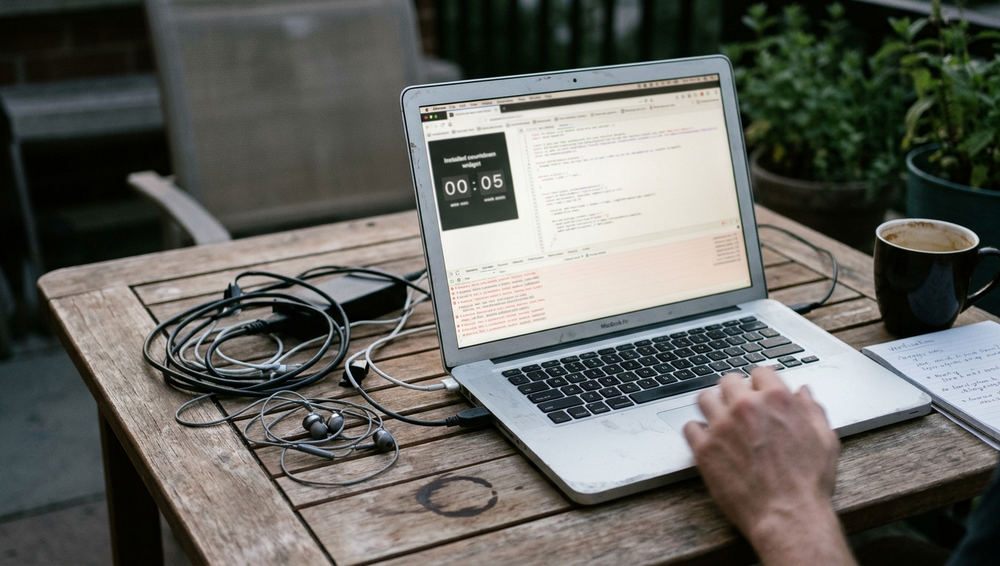
- Confirm that the dark 300 by 150 pixel background, title, and four unit labels render without scrollbars or clipped borders.
- Watch the
SECbox tick downward once per second for five consecutive seconds. - Exit Dashboard, wait ten seconds on the regular desktop, and reopen Dashboard.
- Confirm that the countdown jumps immediately to the current second without displaying a stale timestamp.
Trace Blank Widgets, Missing Files, and Wrong Dates
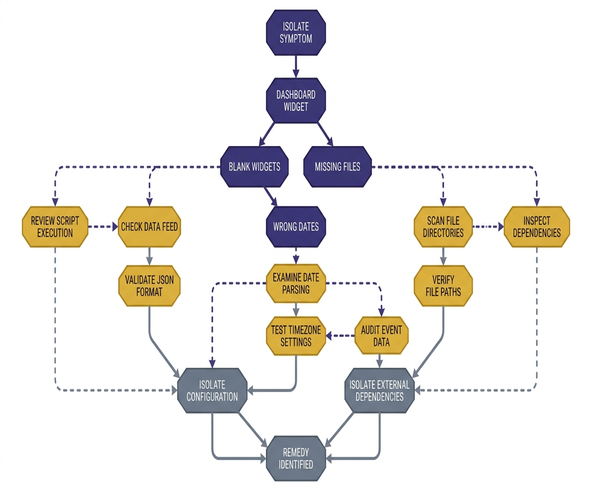
- Finder folder icon fails to convert into a widget package: Check the folder extension and internal hierarchy. Either the directory lacks the exact
.wdgtsuffix, Finder hid a.zipextension after compression, or you accidentally nestedCountdown.wdgt/Countdown/Info.plistone level too deep. - Dashboard displays an empty 300 by 150
Default.pngcanvas with no text: The bundle loaded, but WebKit failed to initialize the document. This isolates the fault toMainHTMLcase-sensitivity (for example, naming the fileIndex.htmlon a case-sensitive volume whileInfo.plistasks forindex.html), missing PNG assets, or broken XML syntax inInfo.plist. Before tearing apart your code, open Terminal and runplutil -lint ~/Library/Widgets/Countdown.wdgt/Info.plistto verify that the property list parses cleanly. - The dark interface renders, but the digits remain frozen at
00: The HTML and CSS loaded, but the script failed to execute or bind. Verify thatmain.jssits in the bundle root, check that your four<span>elements carry the exactdays,hours,minutes, andsecondsIDs, and ensure you did not introduce modern ES6 syntax likeconst,let, or arrow functions on an older OS X release. - The widget immediately reads "Event reached" on launch: Inspect your calendar parameters before touching the division math. Verify that the target year is in the future, confirm you accounted for zero-indexed months (where January is
0), and check the host Mac's Date & Time preferences pane to ensure the system clock and local timezone are set accurately.
Prove the Countdown with a Two-Minute Test Event
Waiting until January 2027 to find out whether your minute rollover and zero-clamping logic work is a recipe for broken desktop utilities. Before considering the project finished, run a mandatory two-minute acceptance test by temporarily overriding the static date with a relative offset of 120,000 milliseconds (2 minutes) from widget initialization.
Right-click ~/Library/Widgets/Countdown.wdgt, choose Show Package Contents, open main.js, and replace the targetDate line at the top of the file with this temporary test line:
// Temporary 2-minute acceptance test target (120,000 ms offset)
var targetDate = new Date(new Date().getTime() + 120000);
Save main.js, summon Dashboard, click the widget, and press Command+R. The readout will immediately jump to 00 days, 00 hours, 01 minutes, and 59 seconds. Watch the timer cross the one-minute mark to verify the 01 to 00 minute transition, hide and reopen Dashboard once during the final minute to verify widget.onshow recovery, and watch the clock hit zero. Confirm that all four boxes clamp cleanly at 00 and the bottom status line changes to "Event reached" without flashing negative numbers.
Because a relative offset recalculates from the current clock every time the script loads, leaving that test line in place will reset the timer to two minutes whenever your Mac reboots or reloads Dashboard. Always finish your build by restoring the fixed integer constructor (new Date(2027, 0, 1, 0, 0, 0)) in main.js and pressing Command+R one final time to lock in your real target date.







Discussion
Share your thoughts.
Write a Comment