

Picture a user sitting in front of an aluminum PowerBook or an early Intel iMac, deciding that the Dock feels a little too bouncy or needs to sit flush against the left corner of the screen. They open System Preferences, click an icon tucked into the bottom row of the window, check a single box to alter a hidden behavior, and watch the Dock vanish and reappear during a brief killall Dock process restart. They close the window and return to their open document. No new icon clings to the Dock, and nothing crowds the top right corner of the display.
That tidy workflow explains why so many authors of classic OS X utilities gravitated toward the preference pane format. When a tool existed solely to adjust a parameter that a user might touch once every few months, housing it beside the operating system's own controls made immediate ergonomic sense. Calling the format ideal reflects an interface judgment about small, settings-oriented utilities; full-featured software still belonged in the Applications folder, while single-purpose configuration switches thrived when tucked out of sight.
Why Small Utilities Belonged Beside System Settings
In the classic Mac OS X architecture, a third-party preference pane functioned as a modular settings interface hosted directly inside the System Preferences application. Developers built these modules using the NSPreferencePane class, supplying their own 32x32-pixel grid icon and custom controls that loaded into a fixed-width host window roughly 595 pixels wide. Instead of building an entire application wrapper with its own menu bar, window management, and lifecycle handlers, an author could focus entirely on the checkboxes, sliders, and text fields required to govern a specific tweak.
This structural restraint fit the culture of Dock customization, screensavers, visual effects, and quiet desktop refinements. While plenty of Mac icon and theme packages or comprehensive tweaking suites shipped as standalone applications, tools that simply toggled hidden com.apple.dock property list keys or adjusted visual parameters needed very little screen presence. Third-party preference panes loaded into the bottom "Other" row (later labeled "Add-ons"), which accommodated 6 to 7 icons per row depending on the specific OS X release.
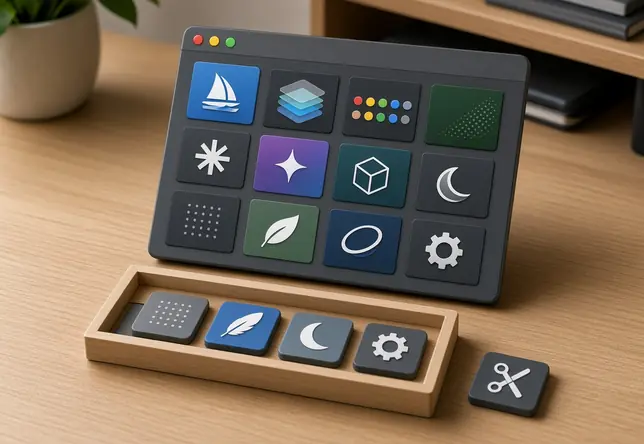
Choosing between a preference pane, a standalone application, and a menu-bar item came down to how often the user needed to touch the controls. We rejected the idea of adding an NSStatusItem menu-bar icon for static Dock spacing or screensaver configuration tools because menu-bar real estate on 1024x768 and 1280x800 displays quickly saturated when users ran more than a handful of background utilities. If a tool required repeated commands throughout the afternoon or displayed continuous live status, a menu-bar icon earned its keep. When the interaction consisted of proven set-and-forget adjustments, placing the interface inside System Preferences kept the daily workspace clean.
A.prefPane Bundle Had Two Installation Scopes
Newcomers digging through old Mac software archives often mistake a .prefPane file for a simple saved settings document, similar to the .plist files stored inside the Preferences folder. In reality, a .prefPane is a full directory bundle that packages the settings interface separately from the preference values it edits. Opening the bundle reveals a strict internal hierarchy: Contents/Info.plist defines the metadata, Contents/MacOS/ holds the compiled Mach-O binary, and Contents/Resources/ stores the .nib or .xib interface files alongside graphical assets.
Once you understand that the pane is executable code wrapped in a folder, its installation paths make complete sense. OS X offered two distinct scopes for hosting these bundles:
- Per-user scope (~/Library/PreferencePanes): Installing a bundle into the home folder's Library restricts the settings GUI to that single user's System Preferences window, requiring no elevated privileges when the user already owns the directory.
- System-wide scope (/Library/PreferencePanes): Placing the bundle in the root Library exposes the pane to every local account on the machine, which requires administrator authentication during installation.
During the early days of OS X, developers weighed whether to distribute a raw .prefPane bundle on a disk image or wrap it inside an .mpkg installer package. Once the operating system added native double-click installation handling for .prefPane bundles, most small utility authors dropped dedicated installer scripts unless their tool required root-level daemon placement. Double-clicking the icon prompted System Preferences to launch and ask whether to install the module for the current user or for all users—though exact dialog prompts, permission checks, and packaging habits varied across OS X releases and individual developers.
Closing System Preferences Did Not Explain What Kept Running
A clean Dock and an uncluttered menu bar often gave users the impression that a preference pane consumed zero system resources once configured. That assumption confuses the configuration surface with the underlying mechanism that implements the tweak. Quitting the System Preferences host application immediately unloads the .prefPane GUI binary from memory, leaving only registered launchd agents or embedded background .app helpers active in Activity Monitor.
Because a .prefPane bundle's Contents/MacOS/ Mach-O binary only lives in memory while System Preferences is open, any active Dock or visual hook must be sustained either by altering an existing system plist or by spawning a separate background helper in ~/Library/LaunchAgents/. A pane that merely writes a boolean value to a system file and restarts the Dock leaves nothing behind. Conversely, a pane that intercepts keystrokes, injects visual effects, or monitors window states acts as a front-end editor for a headless background process registered in Login Items or the user's LaunchAgents folder.
Separate Interface From Engine
Never judge a classic utility's memory footprint by its lack of a Dock icon. Always check whether the preference pane edits an inert configuration file or acts as a control panel for a persistent background daemon.
To see what a pane actually leaves running, use a methodical inspection workflow rather than relying on visual cues:
- Read the bundled documentation: Check the disk image's ReadMe file to see if the author mentions a background daemon, helper application, or kernel extension.
- Inspect startup registrations: Look inside the Accounts (or Users & Groups) Login Items list and check both ~/Library/LaunchAgents/ and /Library/LaunchAgents/ for newly created property lists.
- Monitor active processes: Open Activity Monitor, switch the view filter to "All Processes" or "My Processes," and look for helper binaries bearing the utility's name after quitting System Preferences.
Keep in mind that a single idle observation in Activity Monitor only proves what is loaded at that exact moment; it cannot establish long-term stability or reveal how a helper process behaves when waking from sleep or switching displays.
OS X Compatibility Made a Convenient Format Fragile
Why do so many beloved preference panes fail to open when migrated to a slightly newer vintage Mac? Because a preference pane runs as a plug-in inside a system-owned host application, its survival depends on matching both the operating system's release expectations and the host's processor architecture. When Apple transitioned from PowerPC to Intel, and later from 32-bit to 64-bit Intel execution, every compiled Contents/MacOS/ binary inside third-party panes had to match the execution mode of System Preferences itself.
During the 32-bit to 64-bit transition era (spanning the 2009 to 2011 OS X releases), selecting an un-updated 32-bit pane prompted the system to quit and relaunch System Preferences in 32-bit mode, adding a short delay. That bridge kept older utilities alive temporarily, but once subsequent releases dropped 32-bit host support or required updated Xcode SDKs, unmaintained panes simply refused to load. These compatibility constraints apply to the classic OS X System Preferences host; archived .prefPane bundles may not load or modify behavior on modern macOS releases that use the redesigned System Settings architecture.
We also have to separate the fragility of the .prefPane container from the fragility of the tricks some utilities performed. A well-behaved pane that managed its own helper binary broke only when architecture or SDK rules shifted. However, many classic visual tweaks relied on undocumented plist keys, private frameworks, or runtime code injection into the Dock and WindowServer. When an OS X point update removed a hidden preference key or tightened security rules around system processes, the tweak stopped working even if the preference pane's sliders and checkboxes still loaded smoothly inside System Preferences.
When a Preference Pane Beat an App—and When It Did Not
Looking back at the broader ecosystem of classic OS X utilities, categorizing tools by their daily interaction pattern clarifies why certain formats endured while others felt awkward. Separating the user interface surface from the underlying technical mechanism shows that each container solved a distinct problem.
- Setting a persistent Dock preference: A preference pane excels here. Adjusting magnification limits, pinning position, or hiding delays happens rarely, making System Preferences the natural home.
- Triggering a command repeatedly: A menu-bar utility (NSStatusItem) wins when you need to toggle desktop icon visibility, eject mounted volumes, or capture screen regions several times an hour.
- Checking transient, glanceable information: This is where dashboard widgets shine. A preference pane configures persistent system behavior, whereas a widget provides a temporary overlay you summon with a hotkey, glance at, and dismiss.
- Editing a substantial asset or theme: A standalone application window is essential when previewing multi-icon replacements, managing complex theme libraries, or editing detailed visual presets.
The architectural gap between dashboard widgets and preference panes illustrates how carefully OS X divided these roles. Dashboard .wdgt bundles relied on WebKit (HTML, CSS, and JavaScript) running inside the DashboardClient process for transient information, whereas .prefPane bundles used compiled Objective-C and Cocoa frameworks for persistent system configuration. Treating a widget like a system configurator or forcing a quick-look status tool into a preference pane worked against the grain of the operating system.
Before Installing One More Pane, Check Its Address
If you maintain a vintage Mac partition for testing classic software or preserving period-accurate customization tools, treat every archived preference pane with structured curiosity before installing it. Although the format blends seamlessly into the system's own control panel once installed, it remains third-party code with its own lifecycle and maintenance requirements.
Before double-clicking an unfamiliar .prefPane bundle from the 2005–2012 era, take a moment to create a reliable system backup and read whatever original documentation accompanies the archive. Never bypass system security prompts to force an incompatible module to load. Instead, pick one candidate pane and record four baseline details: its explicitly supported OS X release range, whether you intend to place it in your user folder or the root Library, whether it spawns a background helper, and how the author instructs you to remove it.
You can gather most of this intelligence directly from the Finder using "Show Package Contents" before the code ever touches your preferences window. The CFBundleIdentifier in Contents/Info.plist identifies the bundle, while embedded .app helpers and .sh uninstall scripts may appear in Contents/Resources/. Removing the .prefPane bundle does not unregister a separate LaunchAgent or delete a helper installed elsewhere.







Discussion
Share your thoughts.
Write a Comment