
A sudden loss of custom application graphics disrupts the carefully curated visual hierarchy of a classic Mac workspace. The interface relies heavily on distinct, recognizable imagery to guide user interaction and maintain an efficient workflow. The initial diagnostic phase rejects the common practice of indiscriminately trashing all system caches. Indiscriminate cache removal frequently resets carefully customized desktop themes without actually resolving a damaged.icns file — archival diagnostic logs of classic os x utilities demonstrate as much. This guide focuses on targeted repairs for Tiger and Leopard installations. The scope of this diagnostic routine is strictly confined to these two operating systems. Snow Leopard introduced significant architectural changes to LaunchServices that render these specific steps obsolete. Preserving the integrity of your workspace requires a methodical approach to identifying and resolving the underlying database errors.
Diagnosing the Scope of the Visual Glitch
Pinpointing the exact nature of the icon failure dictates the correct repair path. You must distinguish a stale single-item icon from a systemic LaunchServices generic icon failure. A single application displaying a generic white sheet usually points to a localized resource issue within that specific software package. Multiple applications or entire classes of file types losing their custom graphics indicate a corrupted registration database. This systemic failure often extends to associated dashboard widgets and preference panes.
Begin by checking the affected item in the Finder. Highlight the application and open the Get Info window to inspect the small preview icon in the top left corner. The Get Info window queries the system database differently than the standard folder view. If the Get Info preview displays the correct custom artwork while the Finder view remains generic, the system is merely holding onto a stale display state. If both views show the generic placeholder, the underlying resource linkage is broken.
Inspect the application bundle directly to gather more evidence. Right-click the application and select Show Package Contents. Navigate through the internal folder structure to the Contents/Resources directory to locate the referenced.icns file. Look at the file to verify its presence and check its file size. Do not modify the bundle contents during this initial inspection. A missing or damaged resource file requires a completely different repair strategy than a database rebuild.
Evaluating Theme Disruption Risks
Proceeding with a system-wide cache wipe guarantees the loss of custom folder assignments and personalized dock configurations. Identifying the specific failure pattern prevents unnecessary damage to your existing mac dock customization efforts.
Isolating and Backing Up User-Level Caches
Preparation prevents minor visual glitches from escalating into major data loss. Close all affected applications and allow any active file operations to finish completely. Modifying cache files while the operating system is actively reading them leads to unpredictable behavior and further corruption of the visual state.
Open a new Finder window and use the Go to Folder command. Enter ~/Library/Caches to access the user-level cache directory. The backup strategy specifically targets this user-level cache directory to isolate the intervention. This ensures that broader system-wide cache files remain untouched during the initial troubleshooting steps. Search within this directory for any files containing the string 'LaunchServices' in their filename.
Copy these matching files to a clearly dated backup folder on your desktop. Create a simple text note detailing their original names and exact directory locations. Retaining this information provides a proven rollback method if the rebuild process yields unexpected results.
The root /Library/Caches directory also contains LaunchServices files. Modifying those root files affects every user account on the machine and alters a much broader scope of system operations. Confining the intervention strictly to the user domain rather than escalating to a system-wide sudo reset protects the overall stability of the operating system. Do not delete those root files or use administrator privileges as a routine first step.
Executing the User-Domain Registration Rebuild
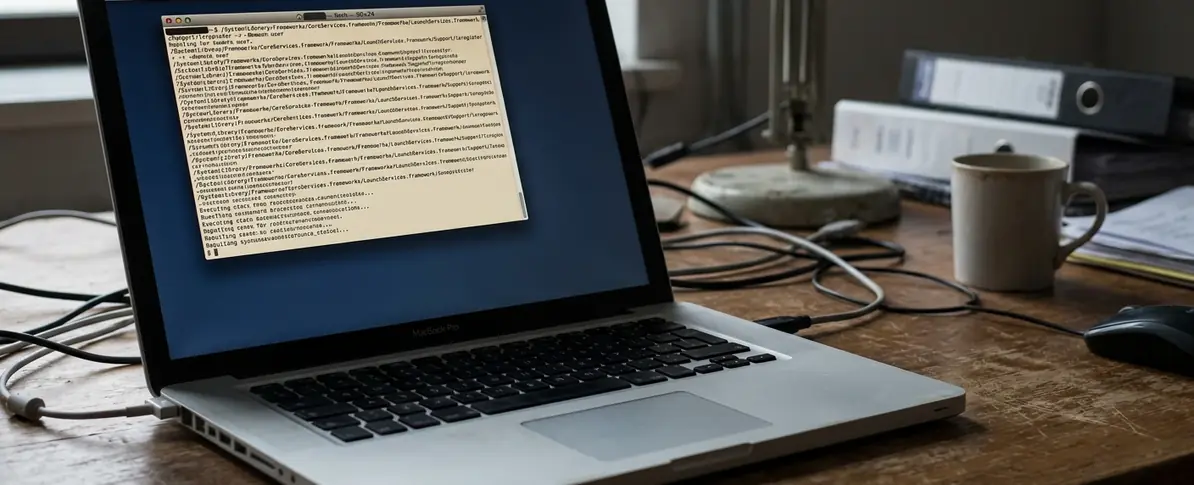
The actual database rebuild requires precise command-line execution. Open the Terminal application to begin the process. You must locate the installed lsregister utility using a dynamic search command. Tiger and Leopard point releases occasionally place the executable in slightly different framework subdirectories depending on the specific update version installed.
Type find /System/Library/Frameworks -name lsregister -type f -print into the Terminal and press Return. The system will scan the framework directories and output the exact file path to the utility on your specific installation. Copy this discovered path exactly as printed to ensure the subsequent command targets the correct executable.
Run the discovered path enclosed in quotes, appending the flags -kill -r -domain user. The -kill flag terminates the existing database process and clears the current memory state. The -r flag forces a recursive scan of all known application directories to rebuild the registry from scratch. The -domain user flag restricts the rebuild entirely to your local account registrations.
Press Return and allow the process to complete. The Terminal will return to a standard command prompt when the rebuild finishes. This registration rebuild is highly effective for restoring generic application icons and repairing broken file-type associations. It cannot manufacture a missing.icns resource if the original file was deleted from the application bundle.
Forcing a Safe Finder State Reset
The operating system needs to reload its visual state to display the corrected graphics. Save any open work in the Finder before proceeding. Press Command-Option-Escape to summon the Force Quit Applications window. Select Finder from the list of active programs and click the Relaunch button.
Relaunching the Finder via the graphical Force Quit Applications window was chosen over a Terminal kill command. This method provides a safer, more predictable state reset for the desktop environment. The desktop icons and windows will briefly disappear and then return as the application restarts and reads the newly generated database.
Navigate back to the folders containing the previously affected items. Compare the current application icon, the file type associations, and the Get Info preview against your earlier observations. Reopen the specific folder if its displayed icons have not refreshed automatically.
If several file types remain wrong after the relaunch, record the exact pattern of the failure. Documenting which specific extensions fail provides optimal diagnostic data for further troubleshooting. Do not repeatedly reset the caches if the first rebuild fails to resolve the systemic issue.
Restoring Missing Resources in a Single Application Bundle
Sometimes a systemic fix reveals a localized problem. Consider a scenario where several generic icons recover successfully after the user-domain rebuild, but one heavily themed application does not. When a single application remains generic, the troubleshooting focus shifts away from cache clearing. You must inspect the specific application bundle's internal icon reference.
Open the Get Info window for the stubborn application. If the preview icon is also generic, the application bundle is likely missing its core visual assets. Right-click the application, select Show Package Contents, and check the Resources folder for the designated.icns file.
If the.icns file is absent or severely damaged, you must restore it. Extract a known-good copy from a certified backup drive. Alternatively, reinstall the application entirely from a trusted original disk image. Extract and preserve any custom artwork, screensavers & visual effects, or mac icons & themes stored within the bundle before replacing the application entirely.
If the resource file appears completely intact, document the observed behavior carefully. Stop short of prescribing broad cache removal without further concrete evidence.
Always rebuild the user-domain LaunchServices database before altering application bundles. The command-line rebuild safely resolves the vast majority of generic icon errors without risking the integrity of your installed software. Touching the internal contents of an application bundle introduces unnecessary risk of breaking digital signatures and corrupting the executable. Execute the user-level lsregister command first, verify the results through a graphical Finder relaunch, and only modify individual application resources when the database rebuild definitively fails to restore the specific icon.






Discussion
Share your thoughts.
Write a Comment