
Rosetta’s Place Between PowerPC Code and Intel OS X
Mac OS X 10.4 Tiger, 10.5 Leopard, and 10.6 Snow Leopard form the practical testing range for PowerPC utilities on Intel Macs. Across those releases, Rosetta translates PowerPC application code when the program launches. That simple description hides the part that causes most compatibility surprises.
A classic OS X utility often extends well beyond its main application bundle. It may install a preference pane, add a menu extra, start a background helper, register a login item, or place a plug-in inside another application. Rosetta can launch the main PowerPC process while one of those supporting components remains unusable.
The useful unit of inspection is therefore the complete utility chain: application, embedded executables, helpers, host-loaded bundles, and system-level components. A window appearing on screen confirms only that one part of the chain crossed the architecture boundary.
Host Boundary
Standalone PowerPC applications make the clearest Rosetta candidates. Components loaded by System Preferences, a screen saver host, or another Intel process require a separate architecture check.
Apple’s archived Rosetta overview explains the translation layer from the application perspective. For classic OS X utilities, that perspective should be expanded to include everything the application expects to run beside it.
Identify the Intel Mac, OS X Release, and Utility Architecture
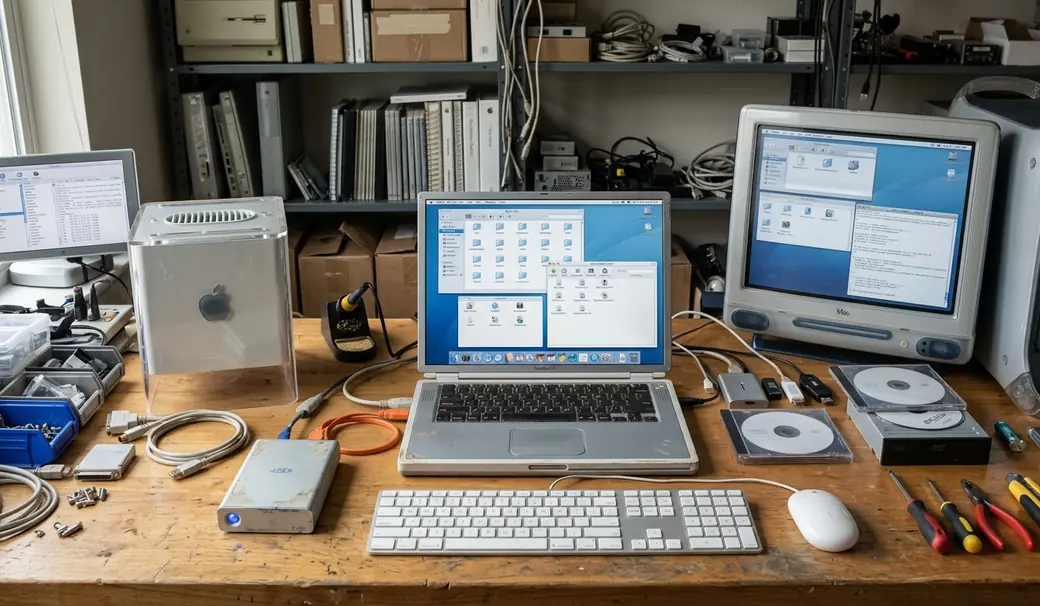
Record the machine and operating system before installing anything. Confirm that the Mac uses an Intel processor, then note whether it runs Tiger, Leopard, or Snow Leopard. Include the exact OS X update level in the test log when it is available; a preserved Snow Leopard machine, for example, may be running Mac OS X 10.6.8.
Start With Finder’s Get Info Panel
Select the application in Finder and open File > Get Info. Older OS X releases may identify the application as PowerPC, Intel, or Universal. PowerPC indicates a Rosetta candidate. Intel identifies a native build, while Universal usually means that the bundle contains code for more than one architecture.
Get Info offers a quick first pass, though it may say little about embedded helpers and installer executables. A Universal label on the main application cannot settle the architecture of every file inside the bundle.
Inspect the Executables in Terminal
Open the application bundle with Show Package Contents, then look under Contents/MacOS. Run file against the executable itself:
file "/Applications/Utility.app/Contents/MacOS/Utility"Architecture details may include values such as ppc7400 or i386. For a file that may contain multiple slices, use:
lipo -info "/Applications/Utility.app/Contents/MacOS/Utility"Repeat the inspection for executables in helper, plug-in, updater, and installer directories. Application bundles can contain several runnable files, and the one named after the application is only the obvious starting point.
- Record the Mac model and OS X release.
- Check the application’s Finder information.
- Inspect the main executable with file.
- Use lipo -info where a multi-architecture binary is suspected.
- Search the bundle for separate helpers and inspect each one.
Audit Preference Panes, Menu Extras, Widgets, and Helpers
Architecture matters most at the point where code enters a host process. A self-contained PowerPC application can run as its own translated process. A preference pane must cooperate with System Preferences, while a screen saver module depends on the architecture and behavior of the screen saver host.
| Component Type | Host Process Dependency | Rosetta Translation Viability |
|---|---|---|
| Standalone application | None; self-hosted | Strong candidate for direct Rosetta translation |
| Preference pane (.prefPane) | System Preferences | Depends on whether the host can load the pane and its helper |
| Menu extra | Menu-bar host process | Host architecture can prevent the component from appearing |
| Dashboard widget | Dashboard environment | Widget code and bundled plug-ins require separate inspection |
| Screen saver | ScreenSaverEngine | A host-process architecture mismatch can stop loading |
| Login item | Login session or separate application process | Depends on the executable launched at sign-in |
| Background helper | Utility-specific parent or launch mechanism | Must be checked independently from the main application |
| Kernel extension (.kext) | OS X kernel | PowerPC kernel code cannot be translated by Rosetta |
Preference Panes and System Hosts
A PowerPC preference pane may refuse to load because System Preferences cannot admit its code into the host process. Another pane may open while its separate helper fails. Treat the pane and helper as two components, even when the installer presents them as one feature.
Screen savers deserve the same care. The relevant host resides at /System/Library/Frameworks/ScreenSaver.framework/Versions/A/Resources/ScreenSaverEngine.app. Comparing the module with its host helps explain why some screensavers & visual effects work as previews yet fail when invoked normally.
Dashboard widgets vary in complexity. A widget made from ordinary web assets presents a different test from one carrying a compiled plug-in or separate executable. Inspect the widget bundle rather than relying on its icon or installation behavior.
Kernel Line
Rosetta strictly excludes PowerPC kernel extensions. A utility that depends on a PowerPC .kext may fail to load or destabilize the Intel system. Remove that dependency from the test plan before launching the utility.
I use the host boundary as the dividing line: every component that enters another process receives its own architecture check. This catches the quiet failures that a successful application launch leaves behind.
Install Rosetta Carefully, Then Run a Controlled Test
First check whether Rosetta is already available on the installed release. Surviving Tiger, Leopard, and Snow Leopard systems have often been upgraded, restored, or selectively migrated, so their current contents matter more than assumptions about an original installation.
On Snow Leopard, use the system’s legitimate installation route or the original installation media when Rosetta is absent. Repackaged downloads remove useful provenance and may alter the files under examination.
Give the Utility a Clean User Account
Create a fresh non-administrator account for the first run. Testing in the primary administrator account can mix the utility with old preferences, forgotten login items, and abandoned support files. A clean account makes a corrupted local setting easier to distinguish from a translation failure.
Direct testing in the long-used administrator account may seem faster. In practice, legacy preference files can mask the cause of a crash, so the clean account earns back the setup time quickly.
Clean Account First
Copy only the utility and the files it genuinely needs into the test account. Let it create fresh preferences before introducing archived settings.
Launch the main application once, then open Activity Monitor. Add or inspect the Kind column and look for PowerPC or Intel beside the relevant process. Keep Activity Monitor open while enabling the utility’s helpers one at a time.
Read Rosetta Failures by Symptom, Process, and Log
A symptom gives the investigation a starting point. The process name and crash time usually identify which component deserves attention next.
When the Dock Icon Bounces Once
If the application bounces and quits, open Console and find the report matching that launch time. Legacy reports may also appear under ~/Library/Logs/CrashReporter/. Check the executable name before assuming the main application failed; an updater or startup helper may have exited first.
Look for architecture or loader messages, missing frameworks, and the named process. An Exception Type: EXC_BAD_ACCESS (SIGSEGV) entry records a memory-access crash, but the exception label alone does not identify Rosetta as the cause. Read the surrounding report and confirm which executable generated it.
When a Pane, Menu Extra, or Helper Vanishes
- Preference pane refuses to load: inspect the pane executable and any privileged or background helper separately.
- Menu extra never appears: check the component loaded by the menu-bar host, then look for a crash at the exact activation time.
- Dashboard widget opens without a feature: inspect compiled plug-ins and bundled executables inside the widget.
- Helper repeatedly crashes: disable automatic launch, start the main application alone, and add optional pieces back individually.
This sequence narrows the failure without changing several variables at once. Begin with the standalone application. Add the menu extra, login item, updater, or background helper one by one, checking Console after each change.
A working main window provides useful evidence, but it covers only the foreground executable. Verify settings persistence, login behavior, menu-bar controls, and any task delegated to a helper. Classic mac dock customization tools and mac icons & themes utilities often divide visible controls from the processes that apply them.
Keep the Legacy Mac Useful Without Trusting It Blindly
Create a full backup or restorable disk image before installing software that adds login items, privileged helpers, or system-level bundles. A removable utility is easy to test; a package that modifies startup behavior deserves a return path.
Preserve the downloaded package alongside a plain-text record containing its source, version, Mac model, OS X release, and the architecture results for each executable. Keep any publisher-provided checksum with that record. An absent checksum supplies no evidence either way, so provenance and controlled testing remain important.
Limit What the Test Mac Can Reach
An unmaintained OS X installation should have limited network exposure. Transfer archived classic OS X utilities through controlled removable media where practical, then disconnect services the test does not require. Old updaters and network helpers can generate distracting failures even when the utility’s local functions still work.
Write down the exact working combination. A note such as “Macmini3,1, Mac OS X 10.6.8, main application PowerPC, helper Intel” is more useful to another archivist than a broad claim that the utility works on Snow Leopard.
A Snow Leopard Test Run From Bundle to Background Helper
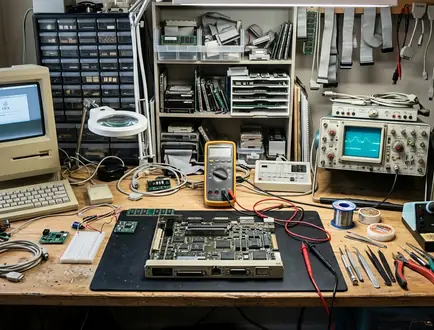
A vintage-computing hobbyist begins with an archived PowerPC menu-bar utility and a late 2009 Intel Mac mini, identified as Macmini3,1. The machine runs Snow Leopard. Before opening the package, the tester duplicates the archive and records the utility version in a plain-text log.
Finder identifies the main application, while Terminal provides the deeper pass. The tester runs file and lipo -info against the application executable, then repeats the checks for the separate background helper and menu component. Rosetta is confirmed through Snow Leopard’s legitimate system installation route rather than an unaffiliated download.
The first launch takes place in a fresh non-administrator account. The configuration application opens, accepts a setting, and remains visible in Activity Monitor as a PowerPC process. At first glance, the archived utility appears healthy.
The menu extra never arrives.
Console records activity at the moment the menu component is enabled, leading the tester back to the host-loaded part of the package. The standalone configuration application continues to work, so the incompatible menu extra stays disabled. The log records that partial working state instead of reducing the result to a simple pass or fail.
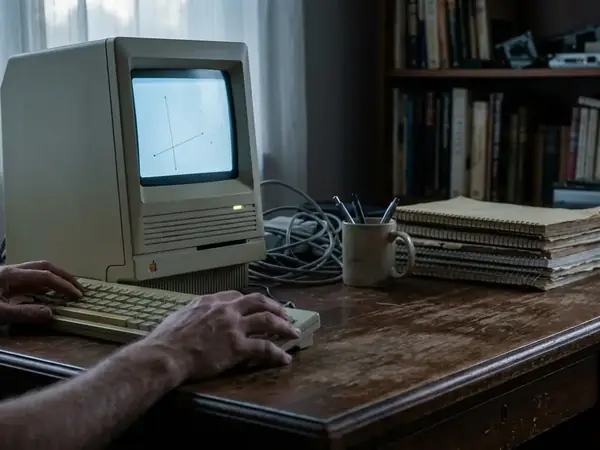
That evening, the Mac mini sits beside a stack of labeled installer discs. Its configuration window remains open, the menu bar stays unchanged, and a new text file beside the duplicated archive records exactly which half of the old utility still runs.


Discussion
Share your thoughts.
Write a Comment